



免费试用无需登录无水印高清下载

AI 物体移除工具

在线移除照片中的多余物体,清理商品图杂物、背景路人和混乱场景,并在同一个 AI 编辑器里继续处理。

6 free credits every day. Sign in to get 10 bonus credits.
AI 物体移除工具清理商品图中的杂物
Use Photo Object Remover to select objects, people, clutter, or props and keep the original photo composition.

Visual examples

Brush-based AI photo cleanup

Remove distractions without cropping, reshooting, or rebuilding the image

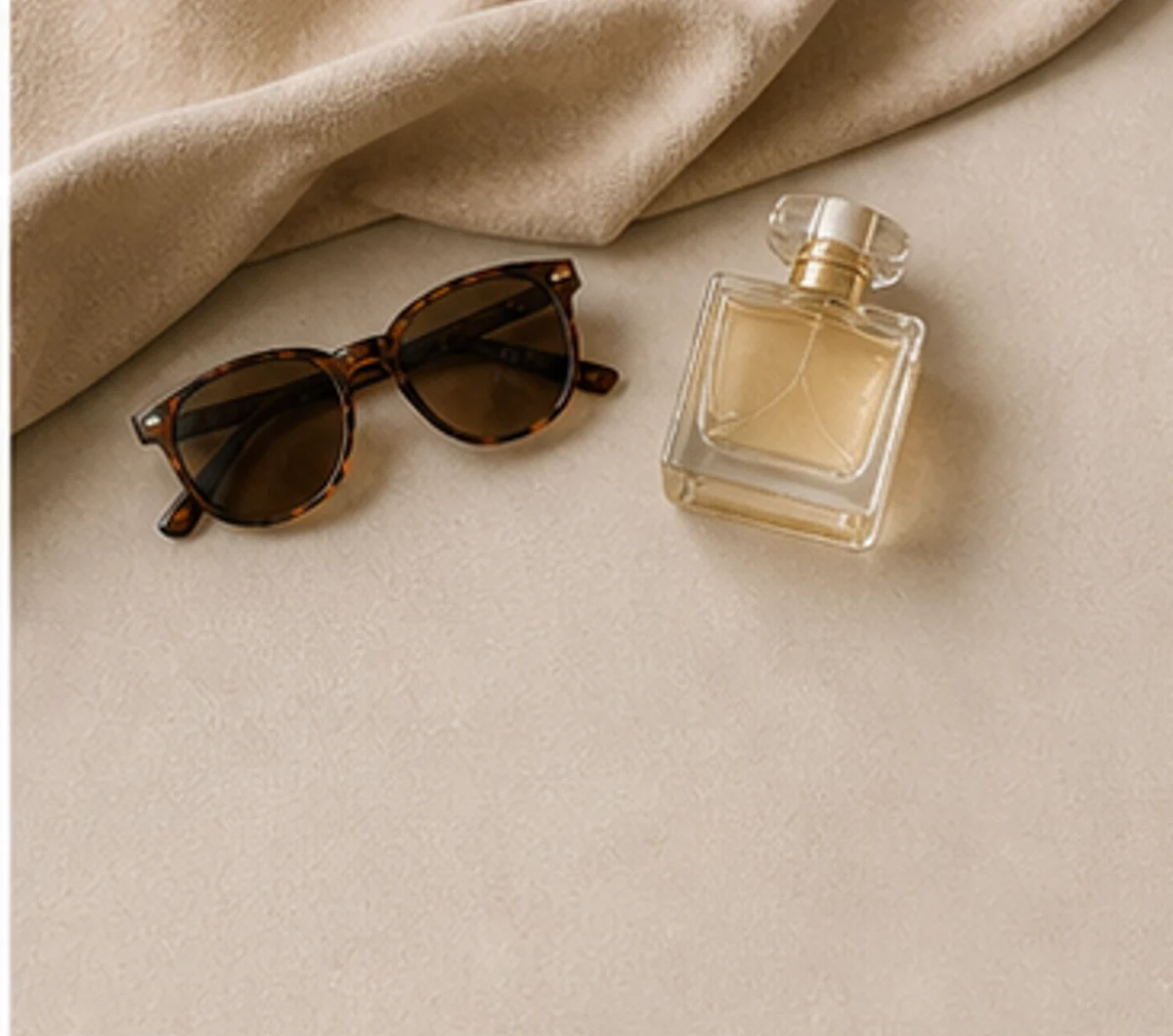
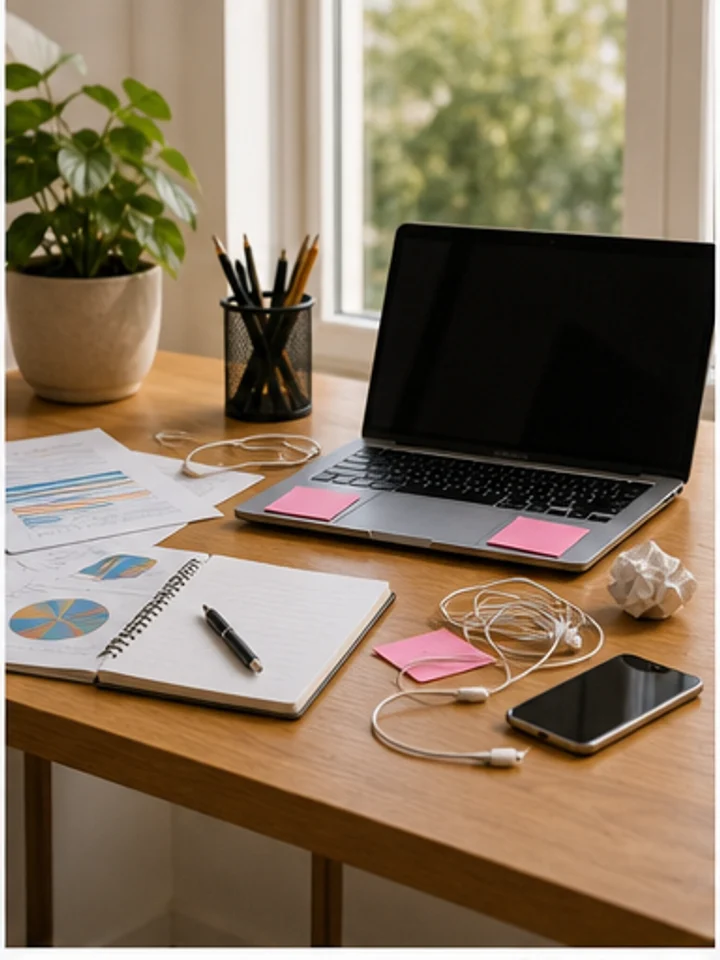
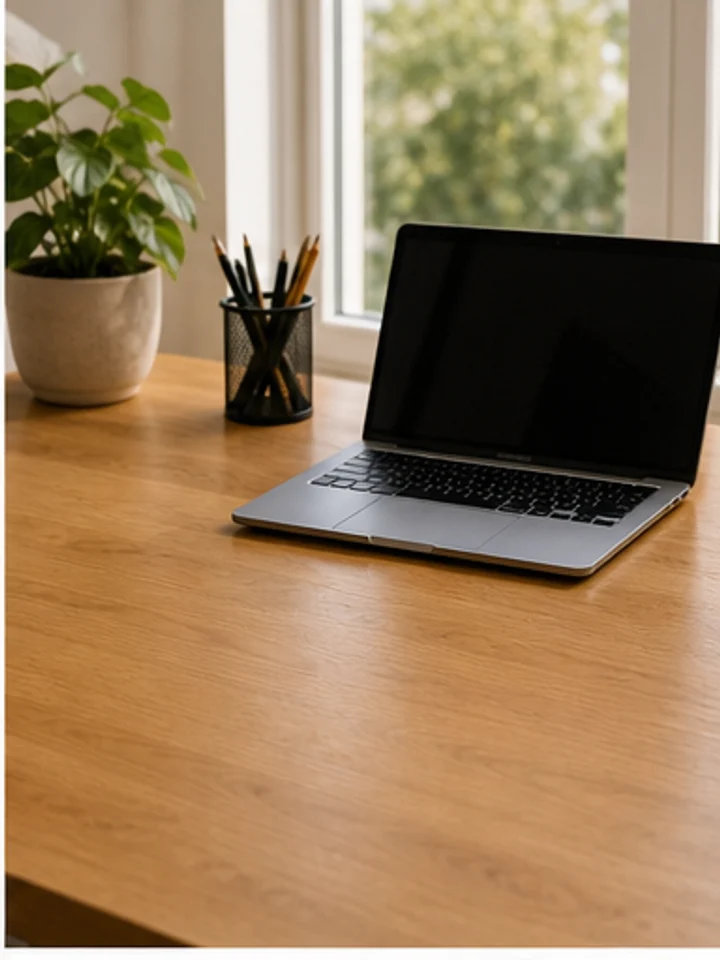
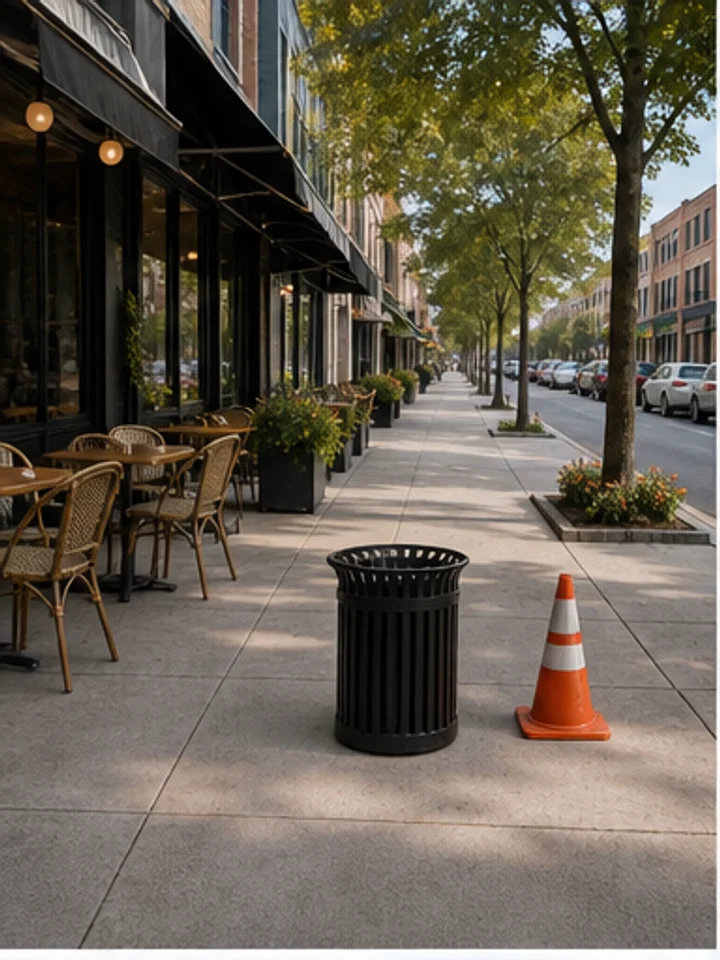
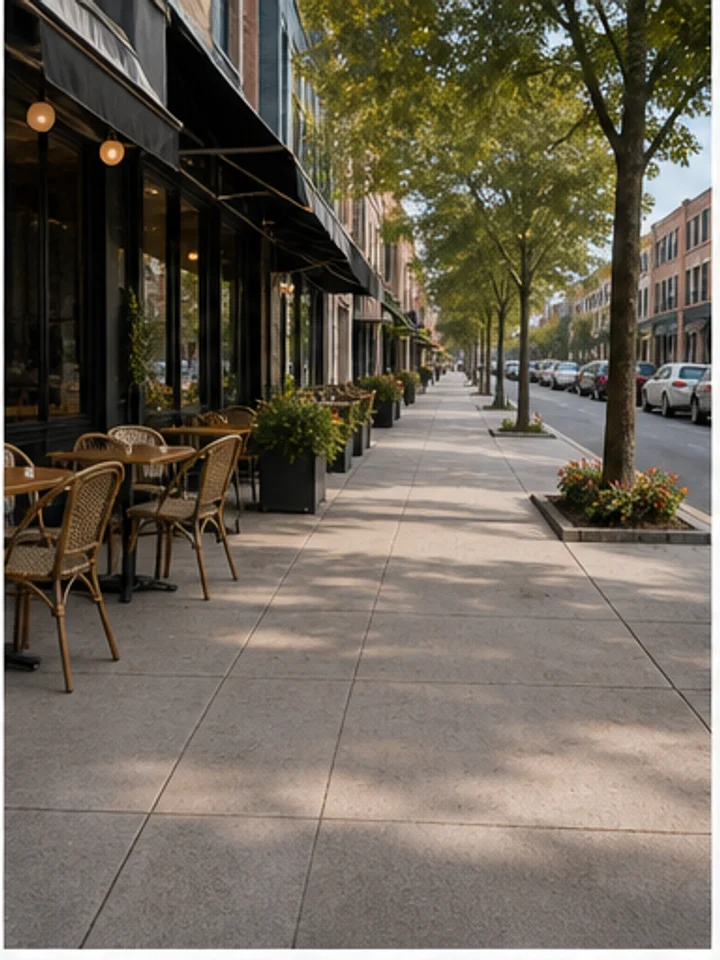
Our photo object remover uses smart AI to clean unwanted objects. A cable behind a product, a trash bin near a room, a tourist in the background, or table clutter can make a strong image feel unfinished. Upload your image, mark what you want removed, and let AI rebuild the selected area with nearby texture, lighting, color, and scene context without Photoshop.

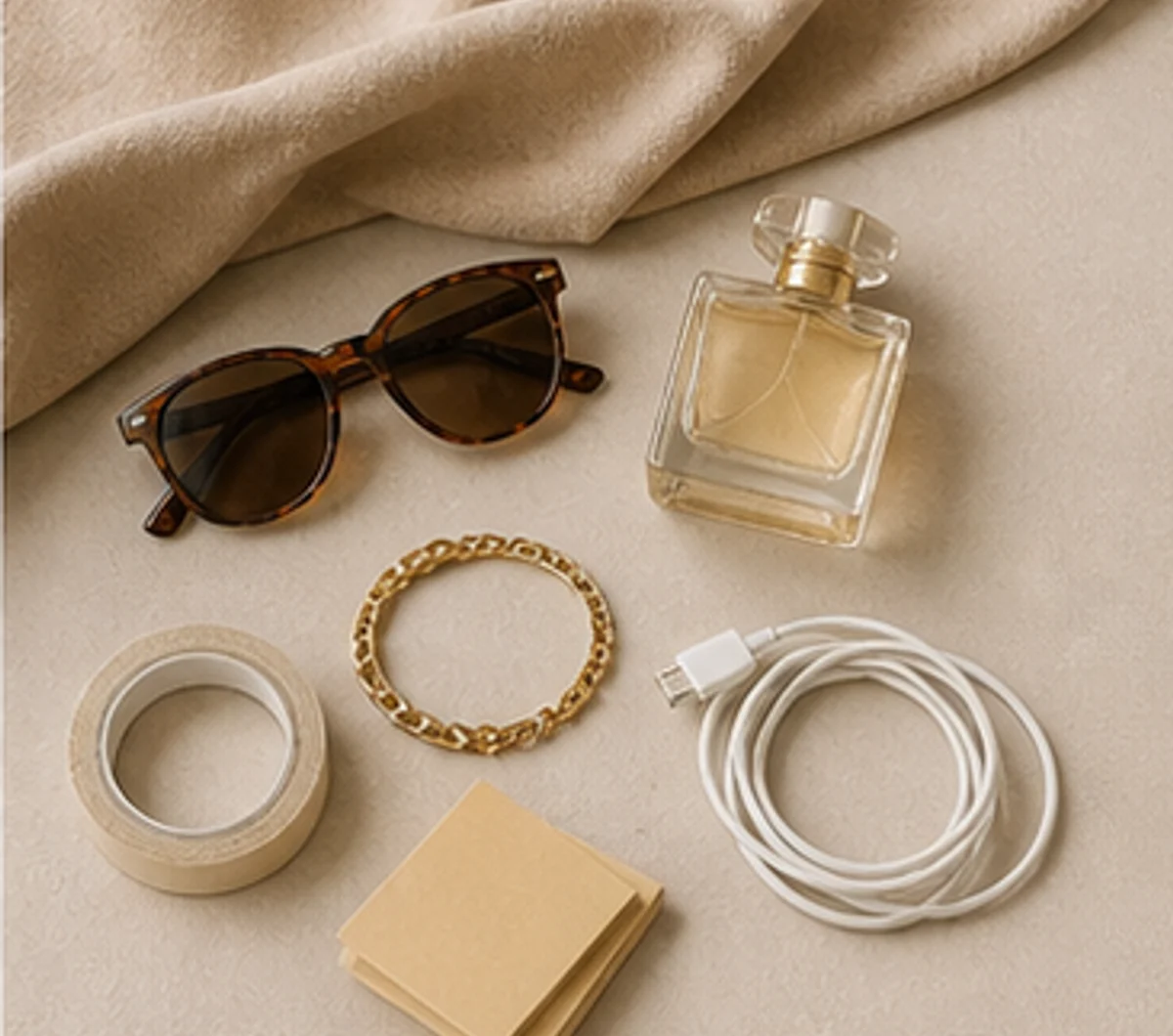
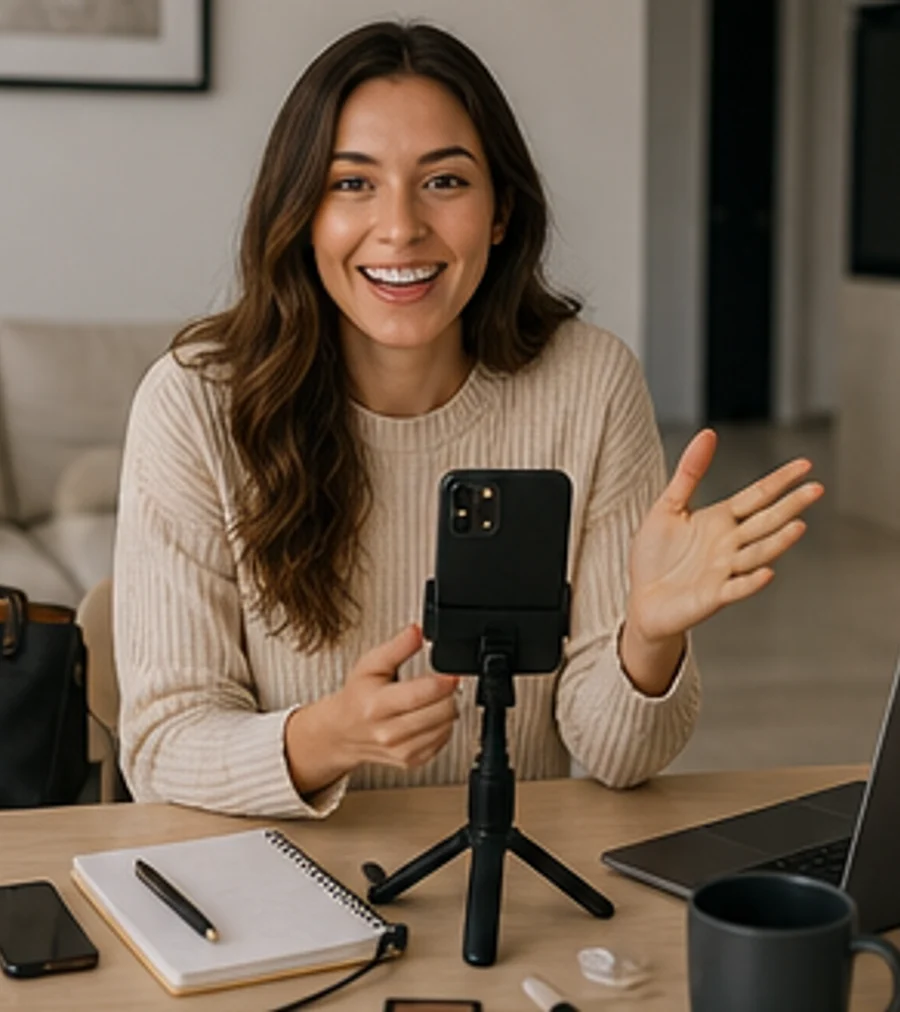
Desk photo before removing clutterBefore
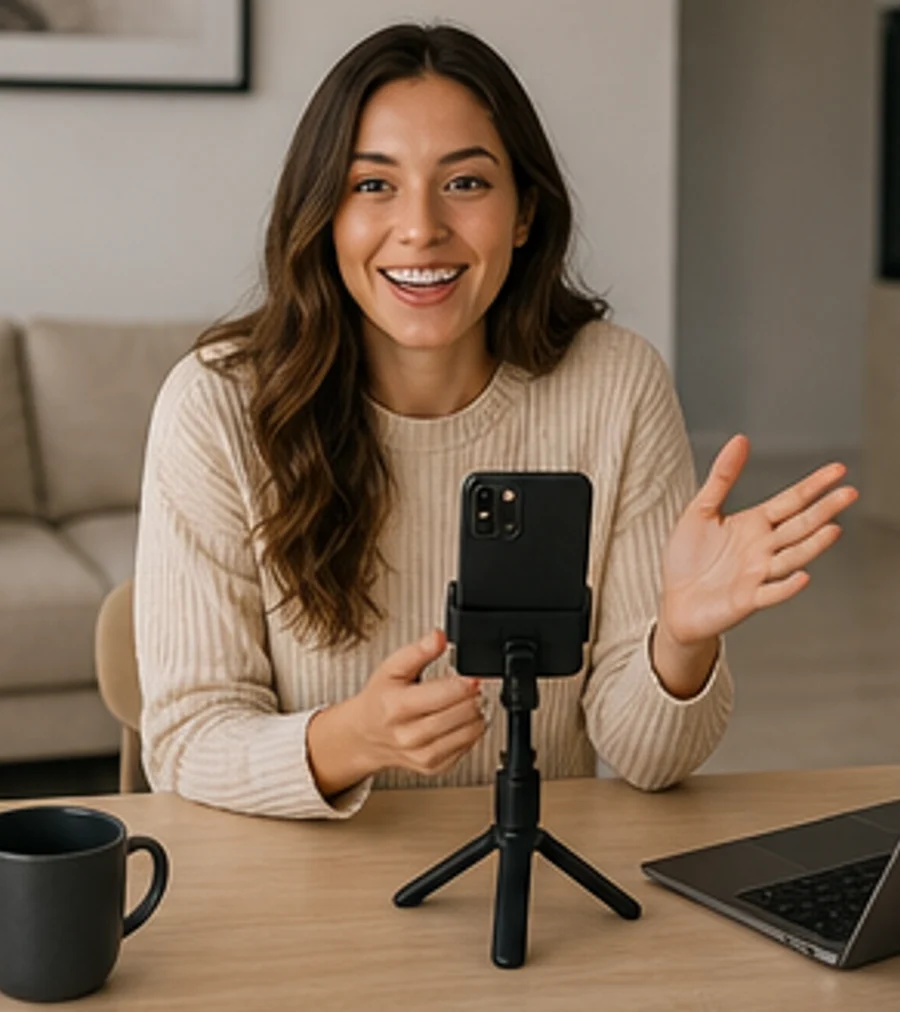
Desk photo after removing clutterAfter
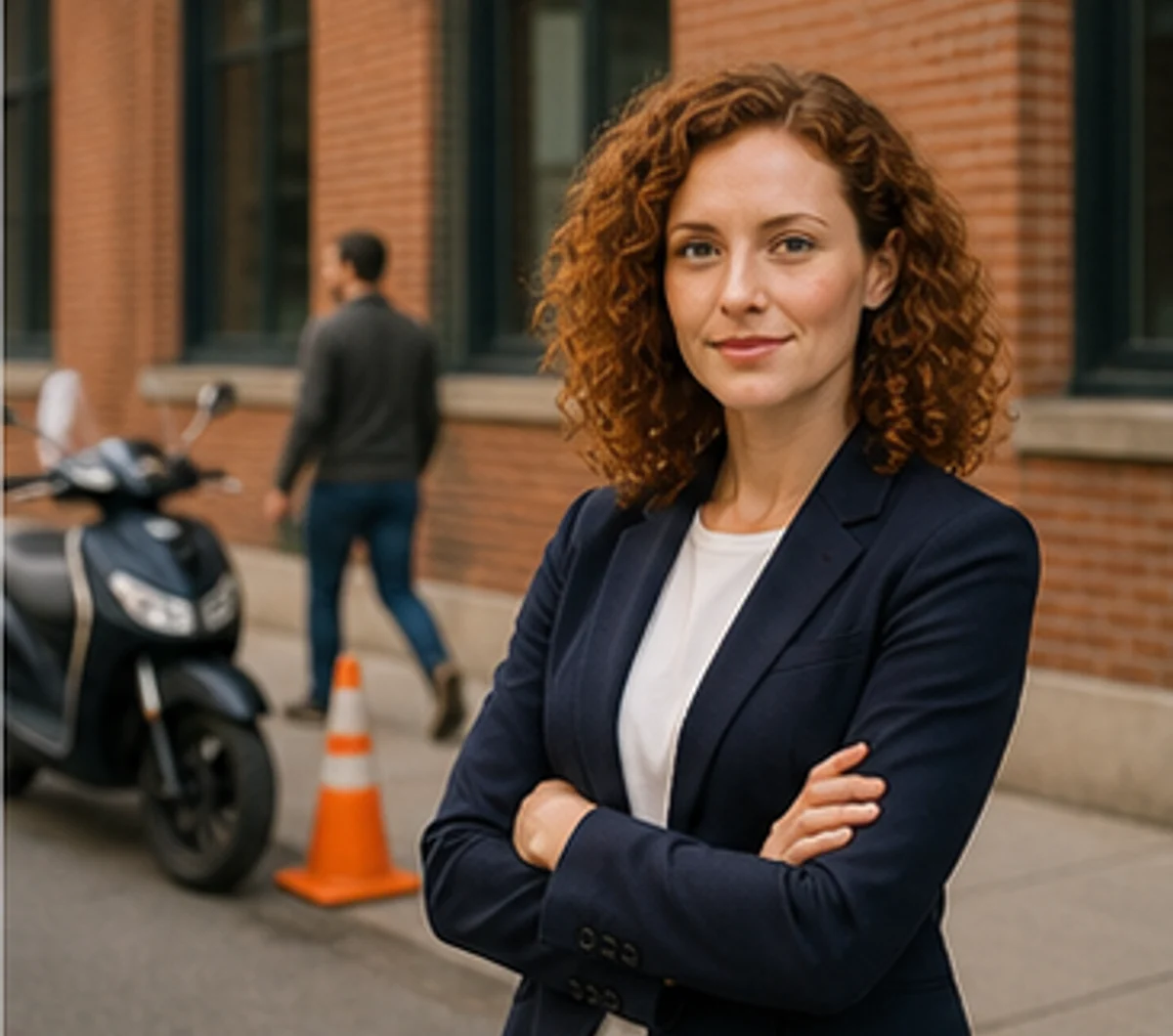
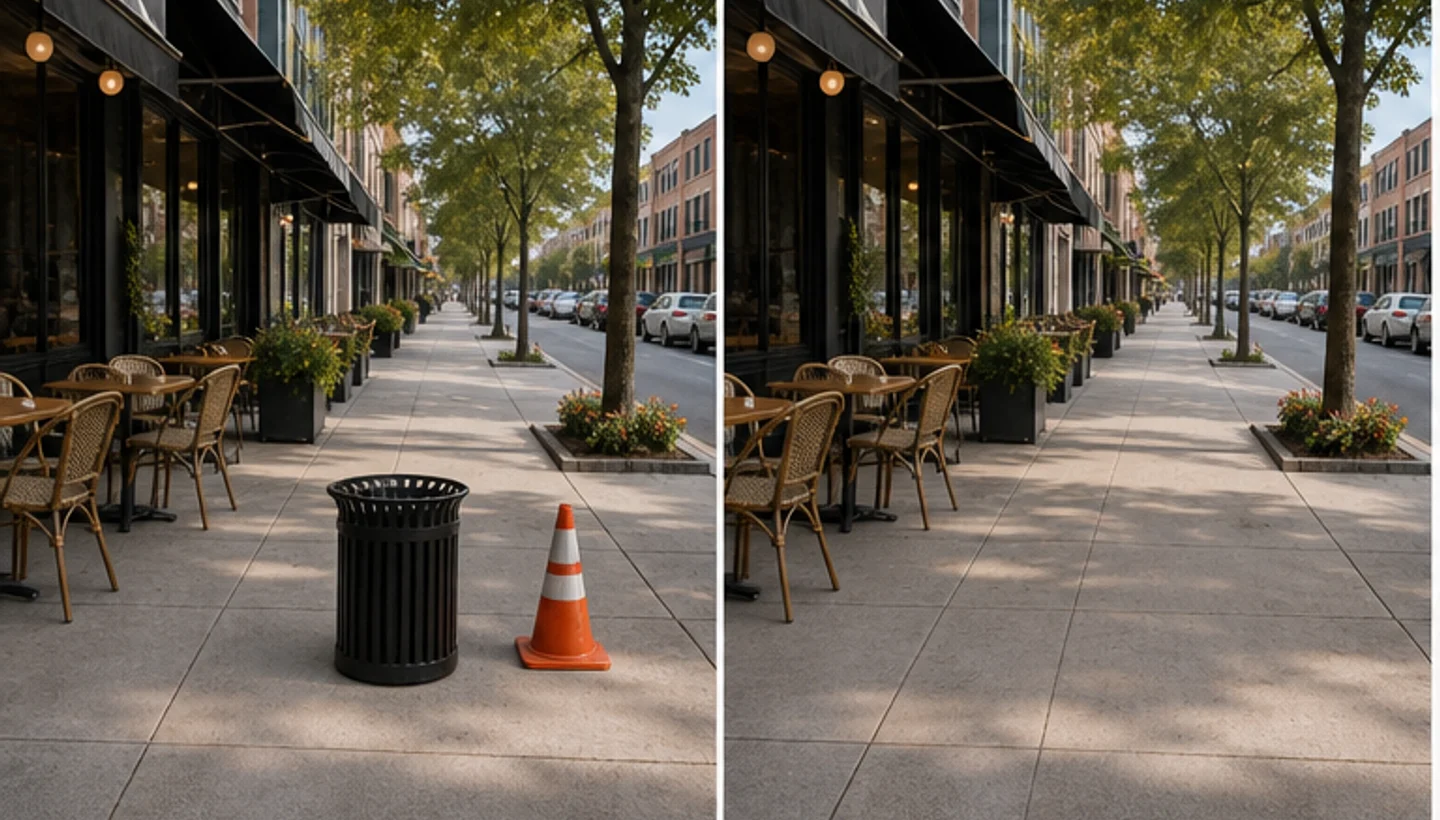
Street photo before removing objectsBefore
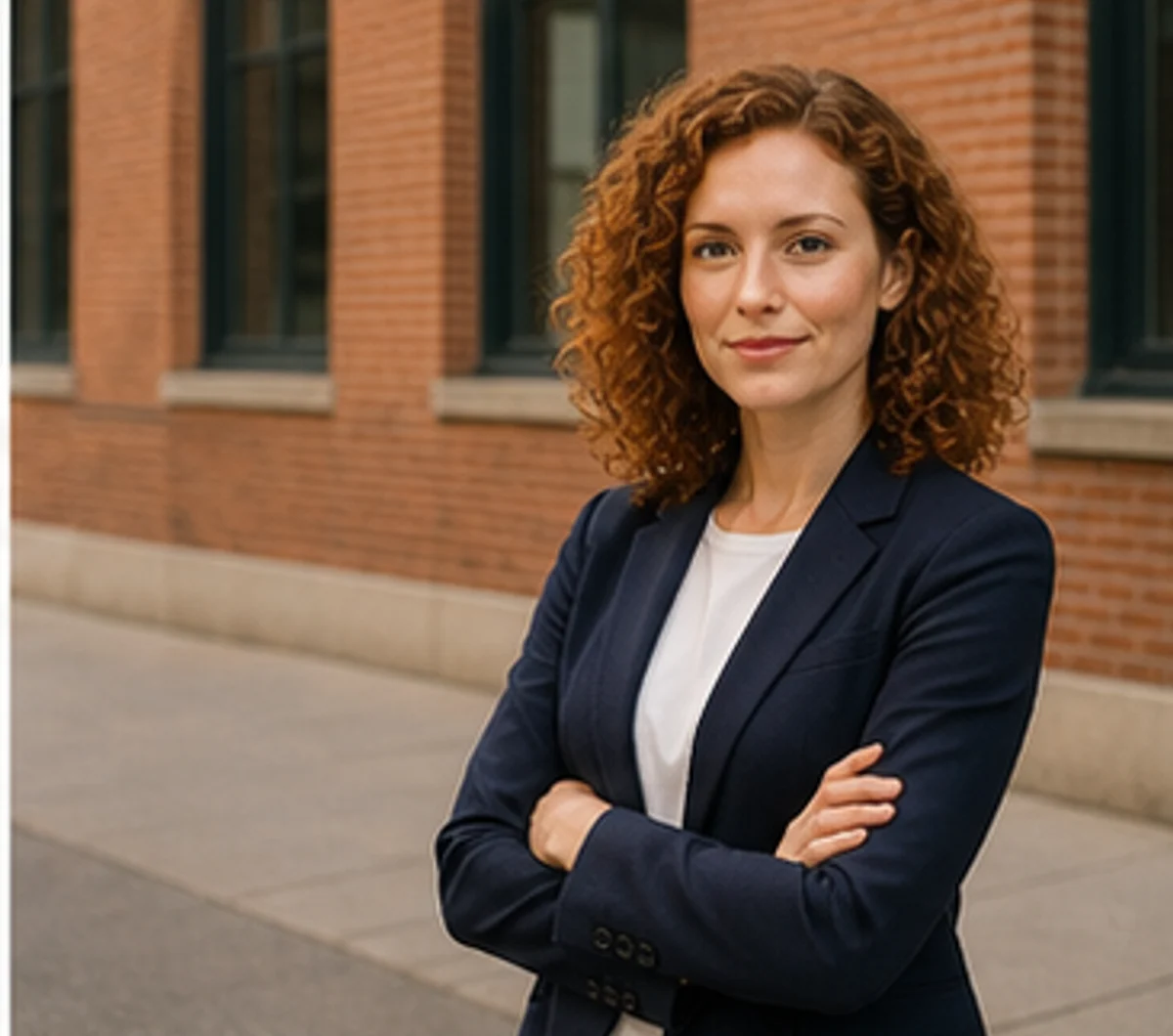
Street photo after objects are removedAfter

Remove objects from photos without cropping

Keep the frame you already captured instead of cutting away useful space. Brush over a trash bin, cable, sign, prop, or background person, then let AI rebuild the selected area with nearby pavement, wall, grass, sky, table, or room texture. It is useful when the composition is strong but one distraction makes the image feel unfinished.

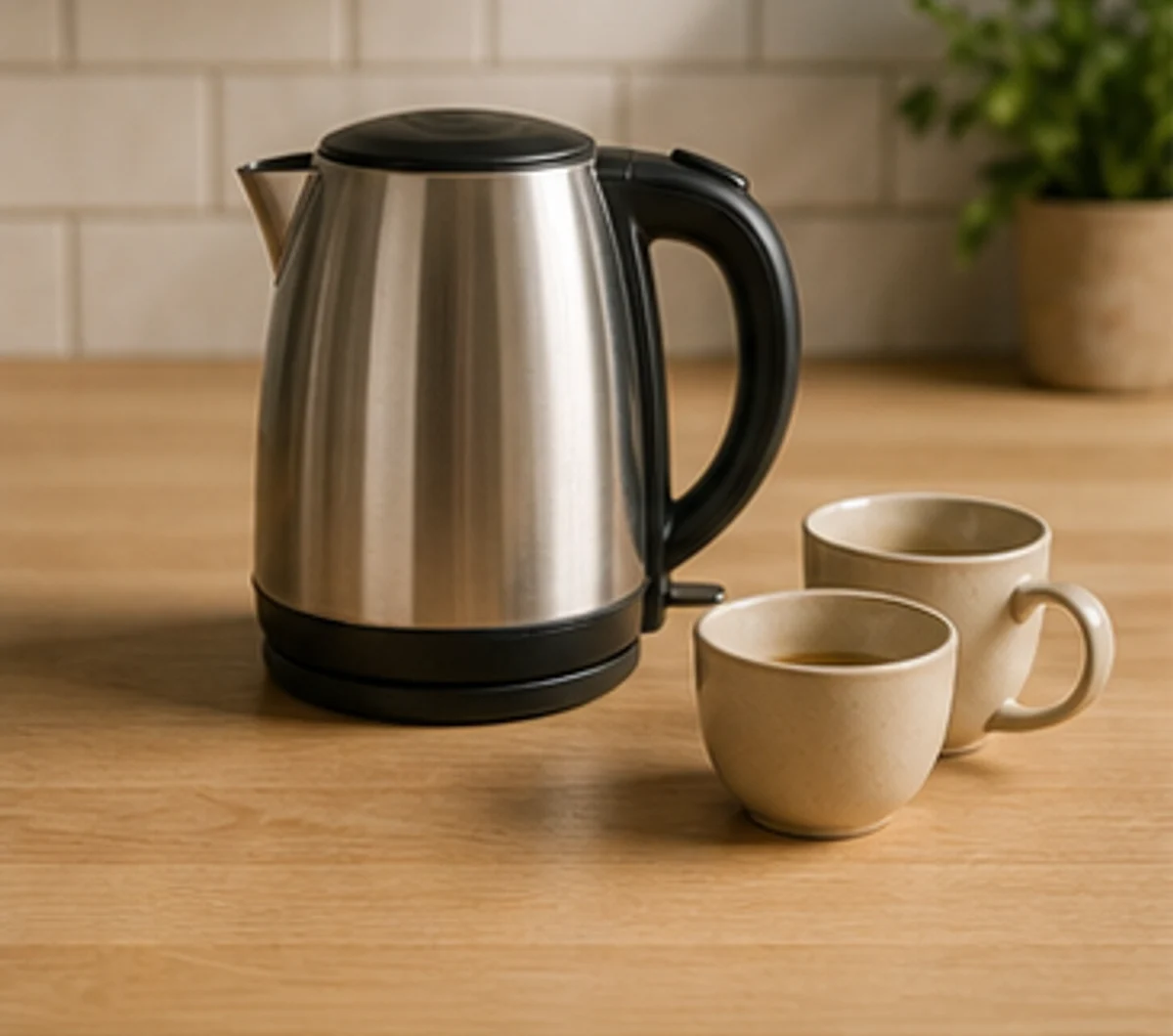
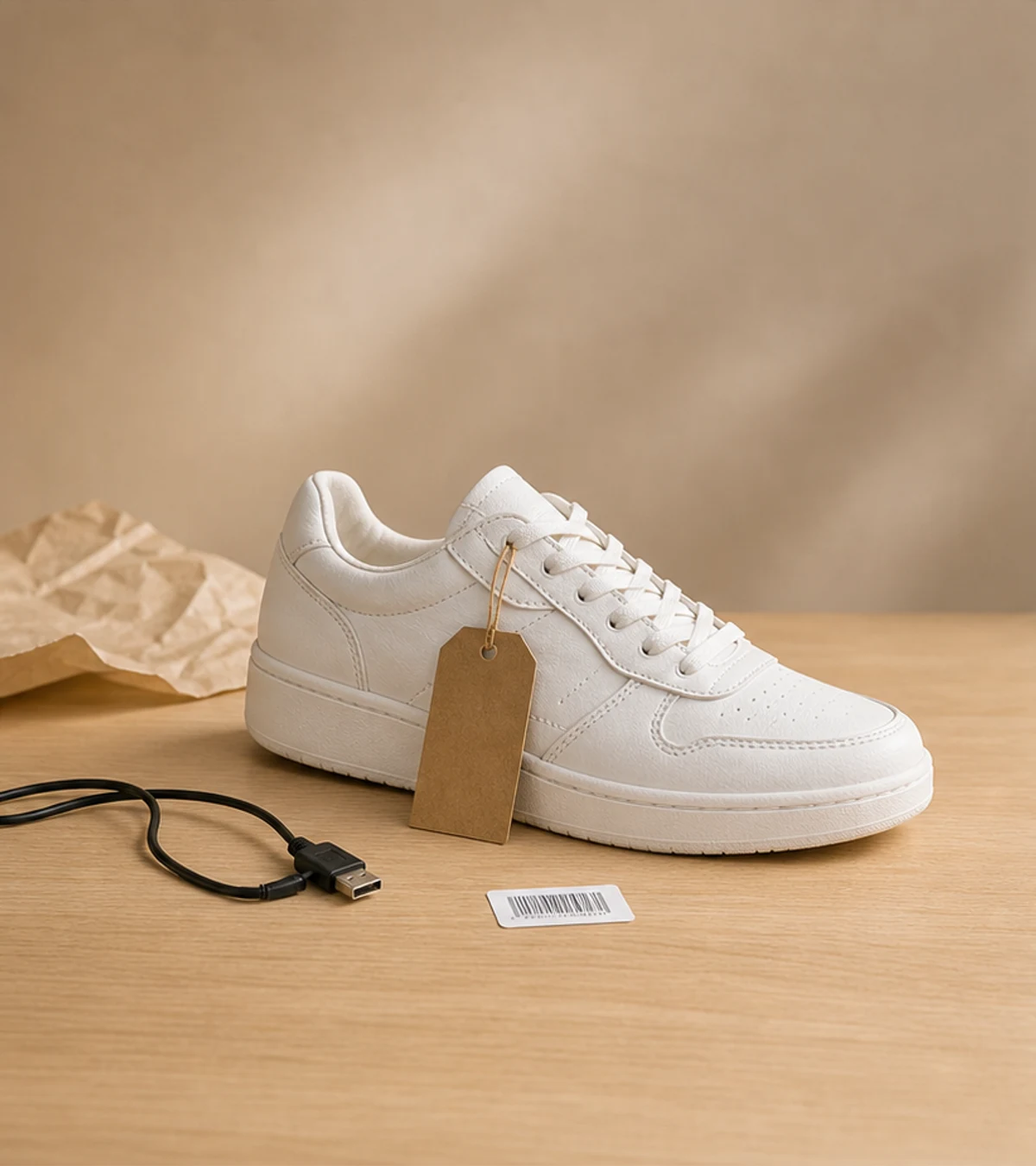
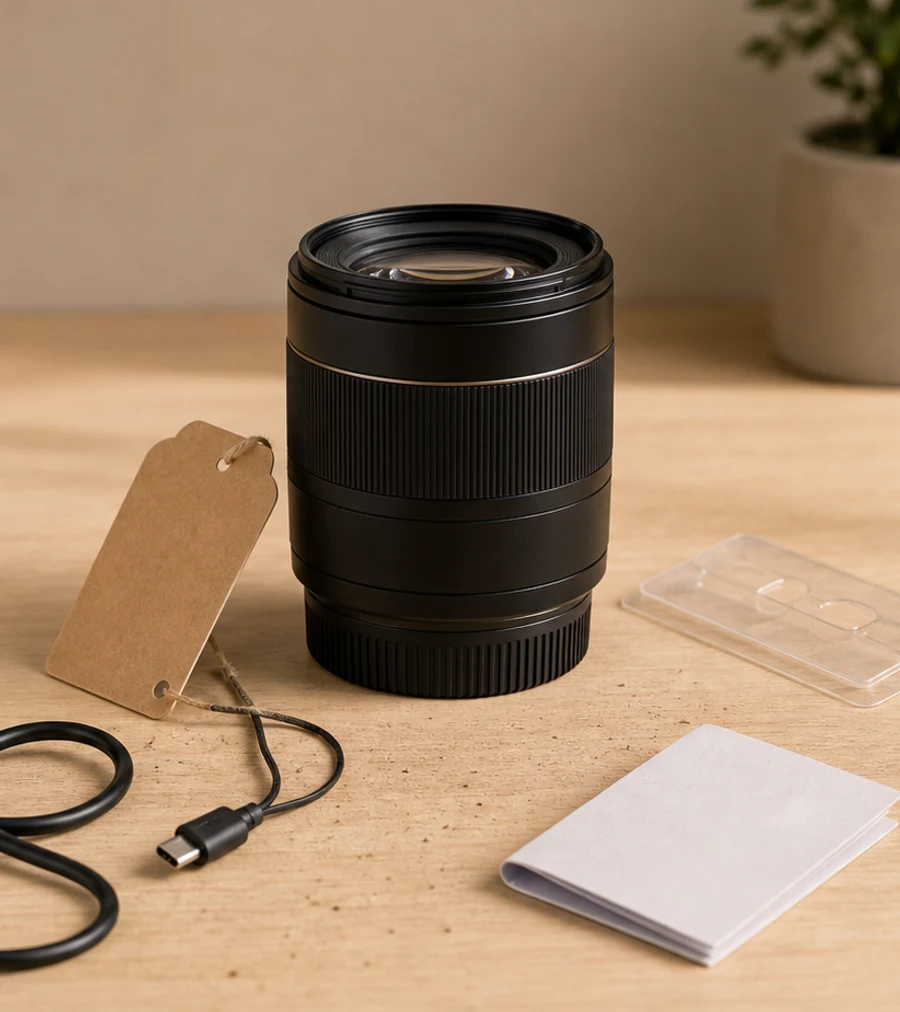
Product photo before object cleanupBefore
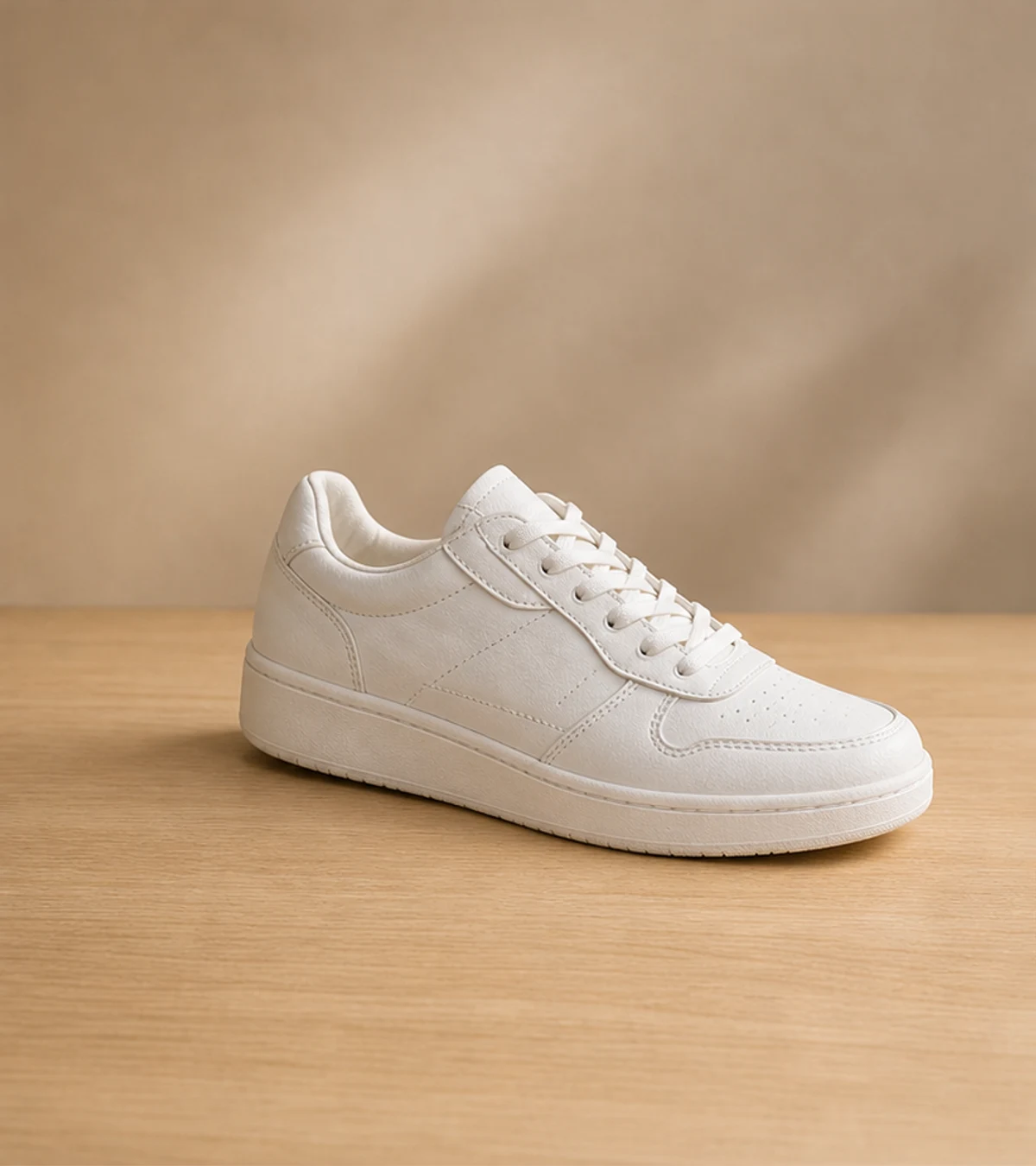
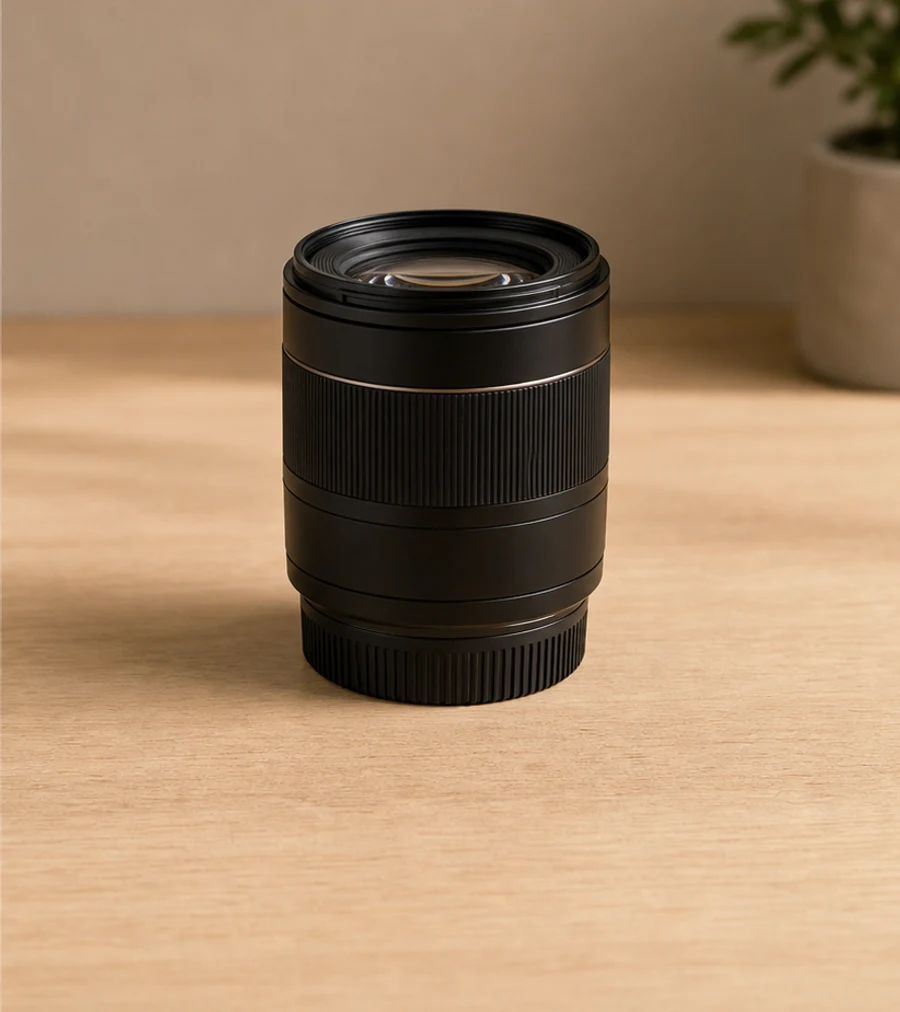
Product photo after object cleanupAfter

Clean product photos before publishing

A product photo can be almost ready except for a stand, sticker, cable, reflection, dust, packaging edge, or table clutter. Remove the distraction while keeping the product angle, lighting, shadow direction, and usable crop intact. This gives ecommerce images a cleaner finish without reshooting the item or rebuilding the scene in a complex editor.

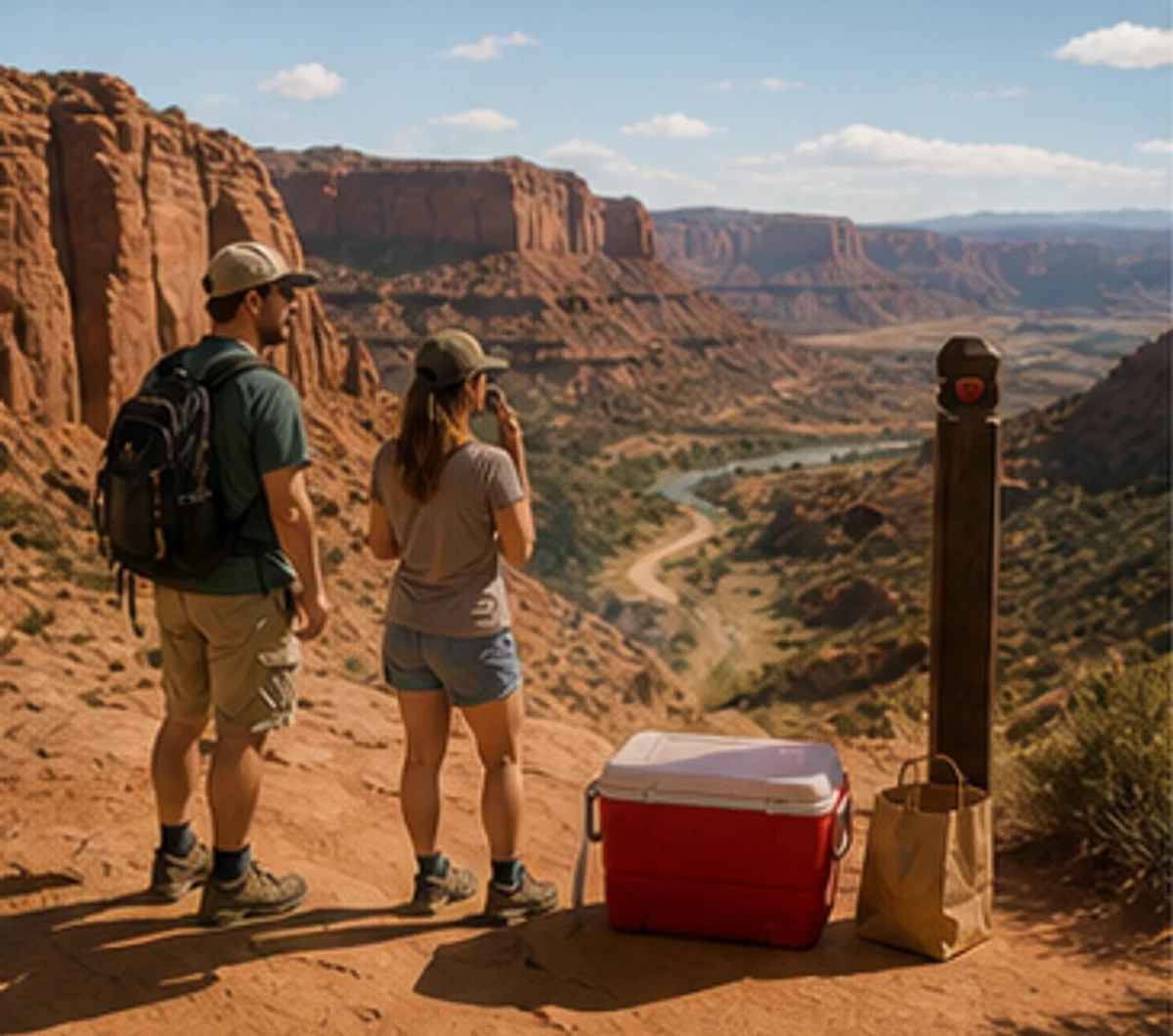
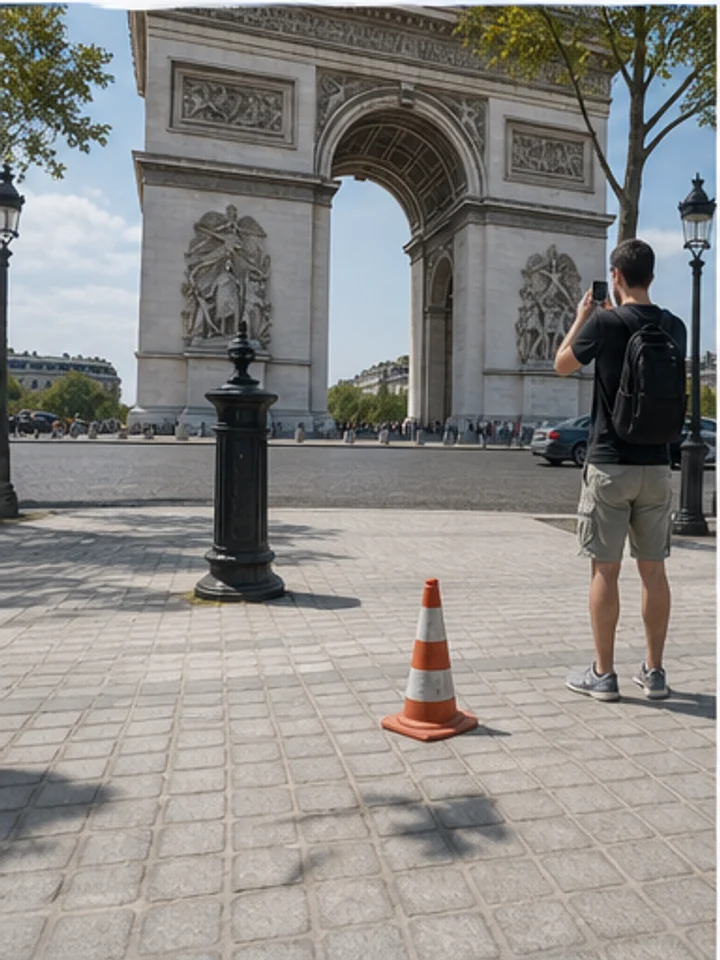
Travel photo before removing people and clutterBefore
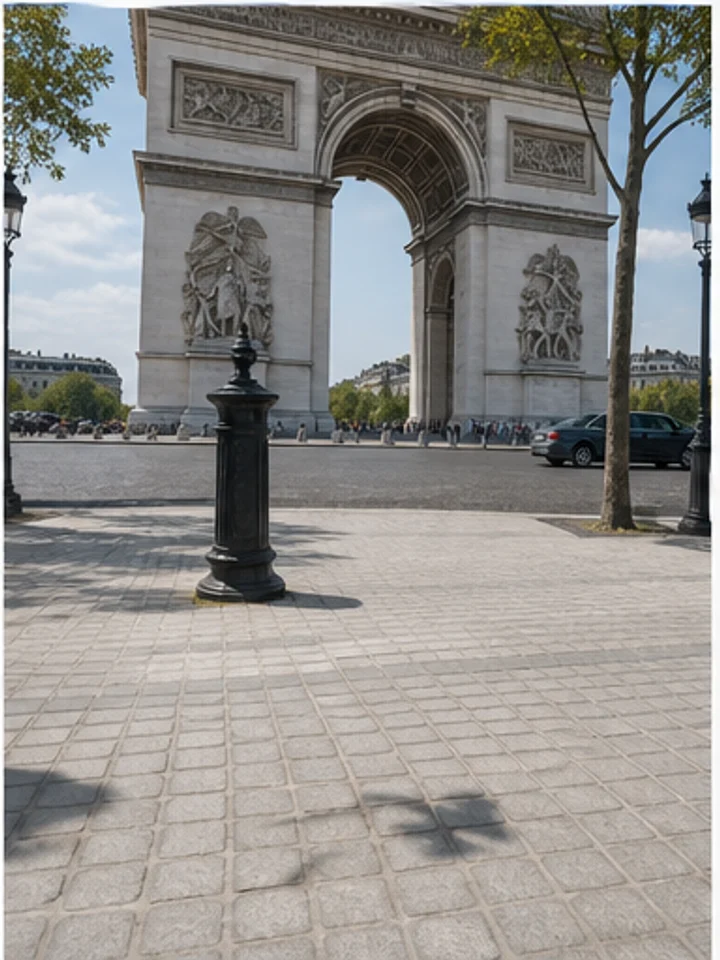
Travel photo after removing people and clutterAfter

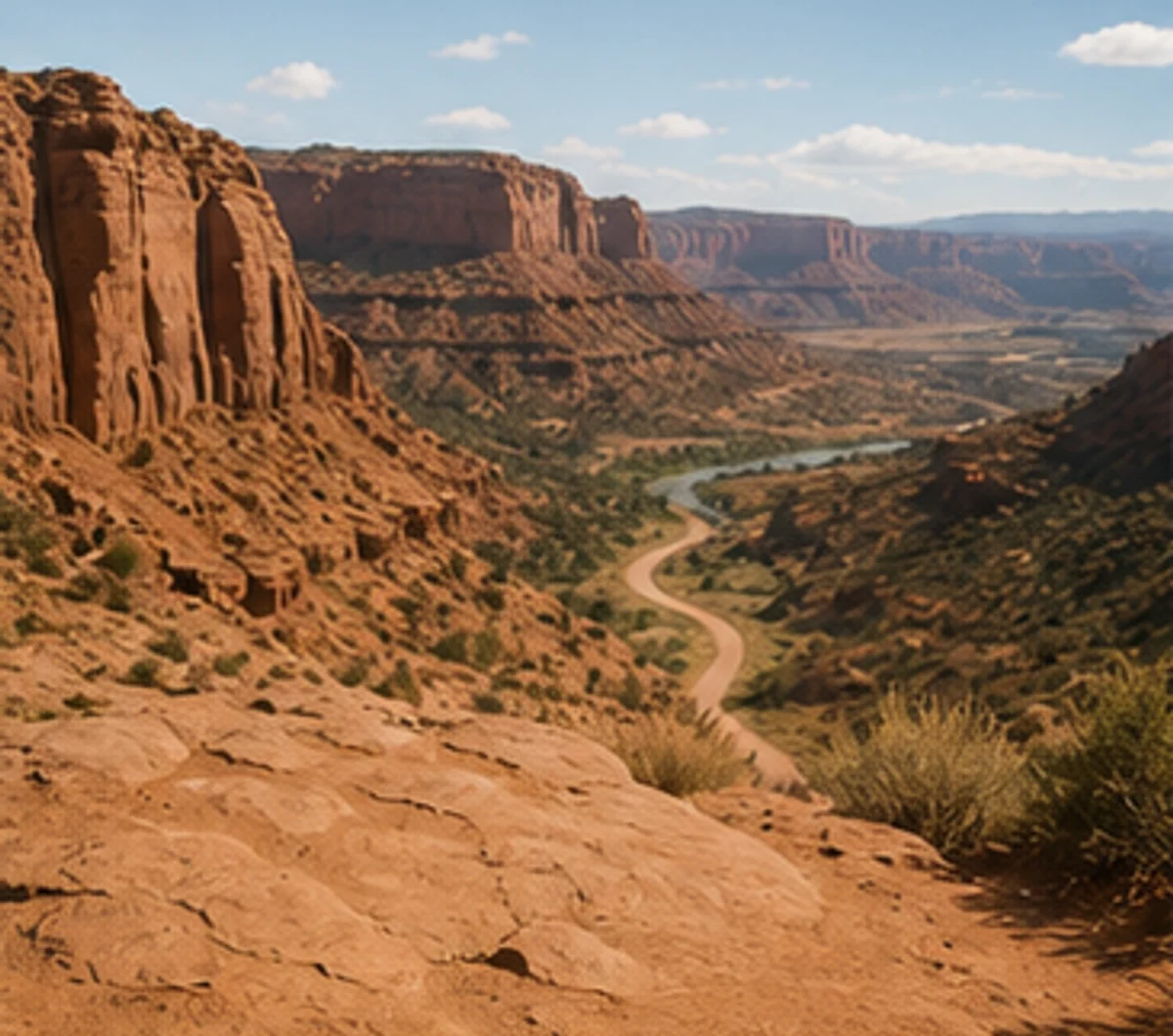
Remove people and distractions from travel photos

Tourists, parked bikes, traffic cones, passersby, and small street clutter can pull attention away from landmarks and vacation shots. Use the tool as a broader people and object cleanup workflow when a photo contains both people and physical distractions. You can keep the original travel moment while making the background feel calmer and more intentional.

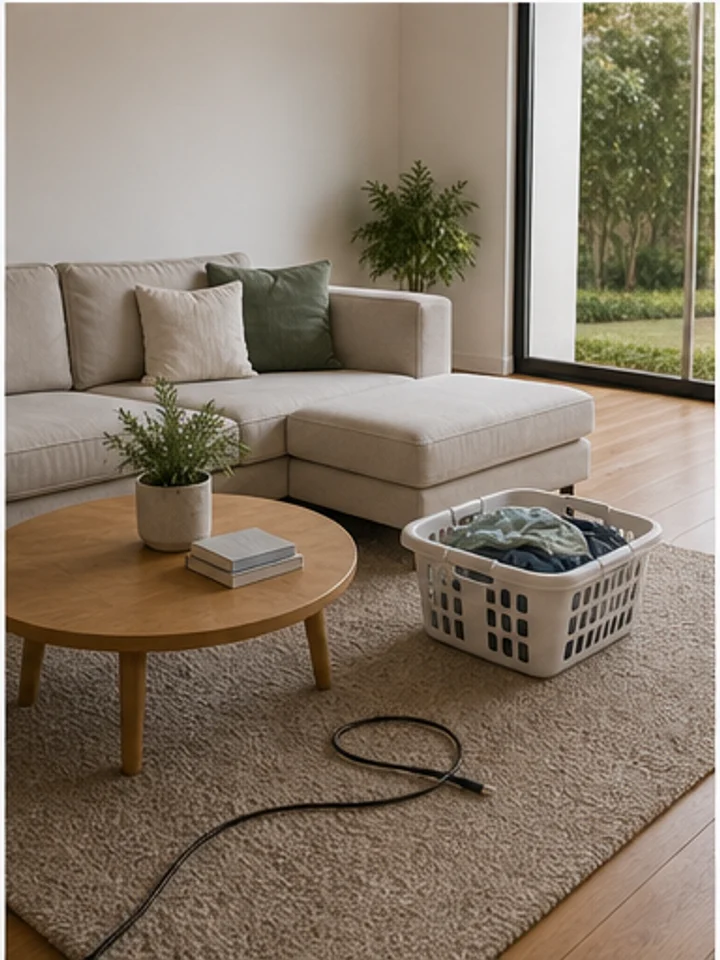
Room photo before removing clutterBefore
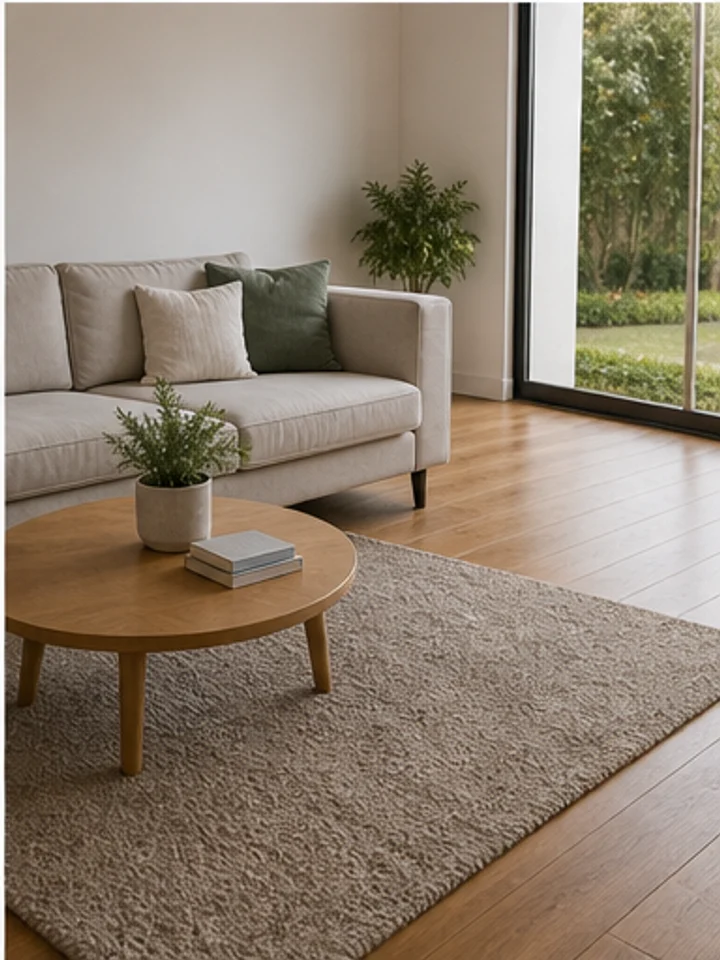
Room photo after removing clutterAfter

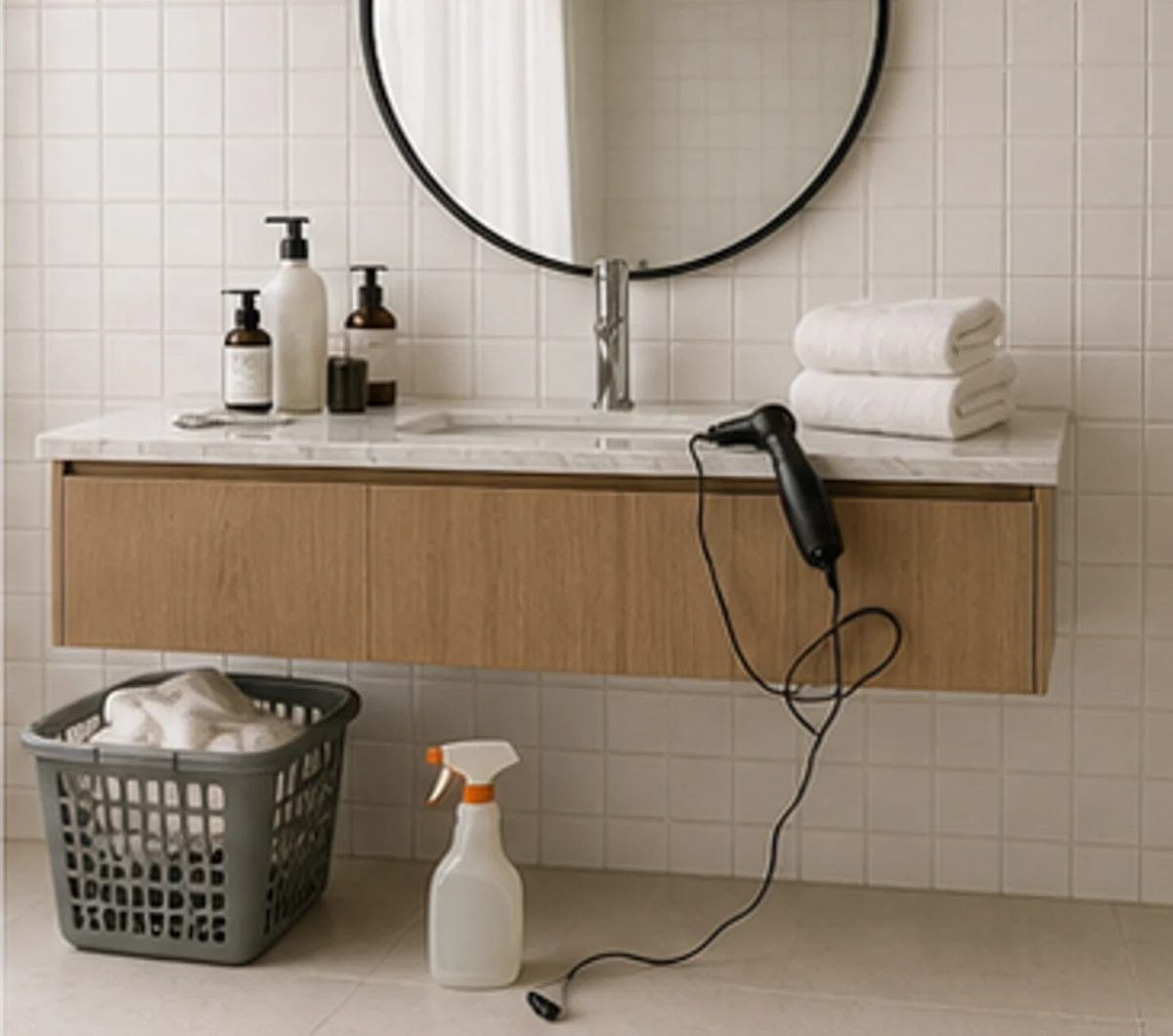
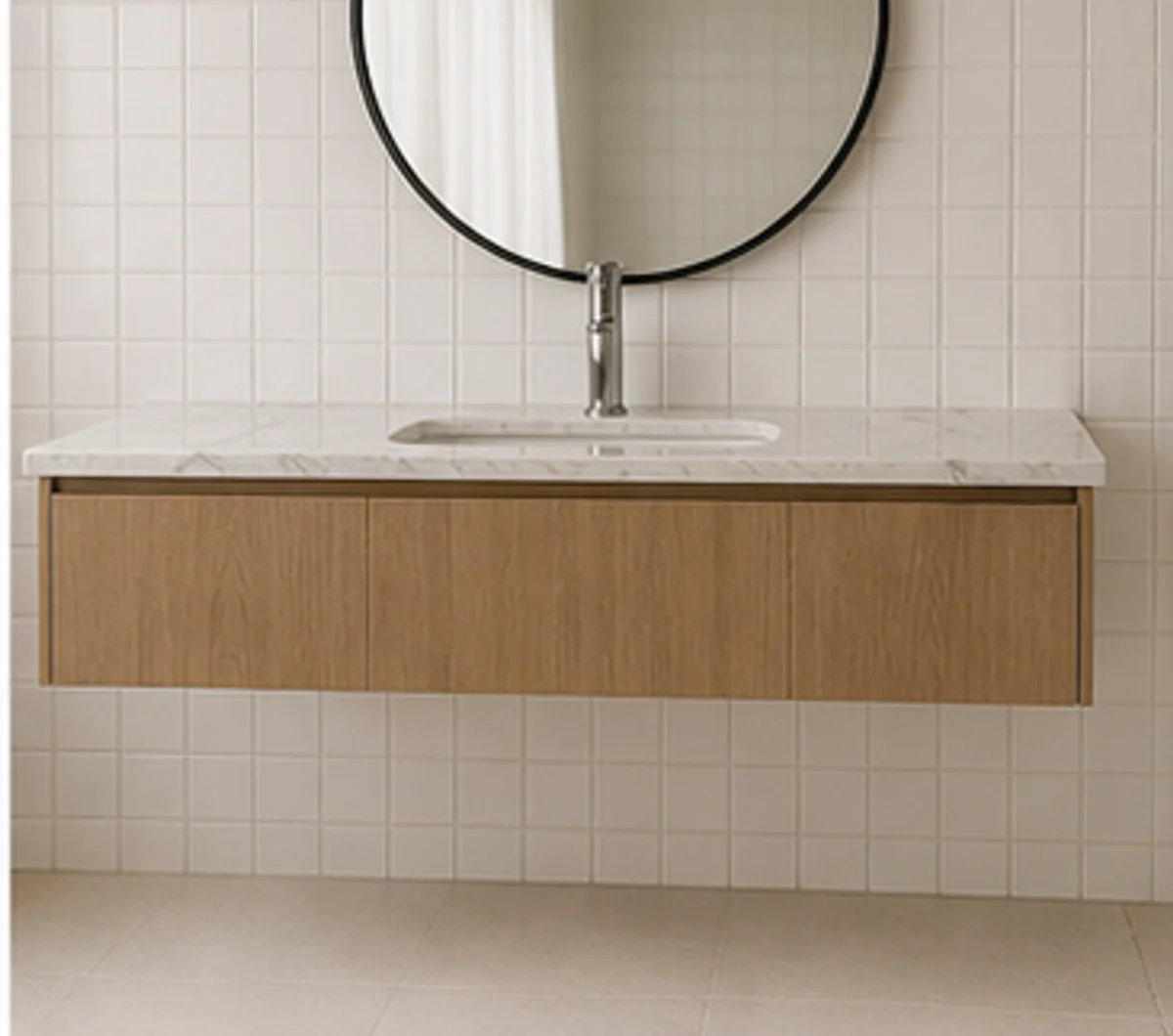
Make real estate and room photos feel cleaner

Remove bins, cords, small boxes, wall marks, floor clutter, and distracting room items before a listing, rental page, portfolio, or social post goes live. The cleanup keeps the room layout, window light, floor texture, and furniture placement visible, so property photos look more prepared without feeling artificial.

Features of Photo Object Remover

Photo object remover for quick cleanup

Remove props, signs, wires, trash, table clutter, small marks, and background distractions without rebuilding the entire image by hand. This remove object from image workflow keeps control with you while AI handles the repair, matching nearby surfaces and textures where possible. Use it for quick cleanup passes before export, publishing, or a second round of creative editing. For larger cleanup queues, use Batch AI Remove to process related images with the same removal goal.

Workspace photo before AI removes clutterWorkspace photo after AI removes clutter

People and background object remover

The tool is broad enough for passersby, tourists, photobombers, and background people, while still covering product props, real estate clutter, cables, signs, and visual noise. It works best when you want one flexible object remover for mixed scenes instead of switching between several narrow workflows. Start broad, then refine with the brush when edges need more control. If the page should focus only on people, open People Remover for a more specific workflow.

Lifestyle photo before removing a background personLifestyle photo after removing a background person

Product and ecommerce cleanup

Clean stands, labels, dust, scratches, harsh reflections, packaging flaws, and table items before publishing product photos to shops, marketplaces, ads, and catalog pages. Keep the product shape and lighting consistent while removing the small details that make a listing look unfinished. It is a practical ecommerce object remover step for sellers, creators, and marketing teams preparing many assets.

Ecommerce product photo before removing propsEcommerce product photo after removing props

Scene-ready visuals for creators and teams

Prepare cleaner thumbnails, social posts, campaign visuals, real estate photos, food shots, lifestyle images, and personal pictures without opening a complex desktop editor. Remove visual noise before adding text, changing backgrounds, cropping for channels, or exporting final files. Teams can use the same cleanup rhythm across everyday images and polished campaign assets.

Creator photo before removing distracting objectsCreator photo after removing distracting objects

How to Remove Objects from Photos Online

Upload your image, select the object, person, prop, cable, or background distraction, then download a cleaner photo. The workflow runs in your browser, supports common photo formats, and stays easy to repeat.

1

Upload your photo

To remove objects from photos online, choose a JPG, PNG, WebP, AVIF, or BMP image, or start with an object remover sample.

  1. 1Use product, travel, room, food, real estate, event, or social photos.
  2. 2Pick a clear image where the object has surrounding background texture.
  3. 3Check the preview before starting the cleanup pass.
2

Select the object to remove

Use Auto Remove for clutter, or brush over the exact object, person, cable, sign, or prop you want to clean.

  1. 1Keep the mask close to the selected area for cleaner repair.
  2. 2Use a smaller brush near product edges, hands, faces, and straight lines.
  3. 3Clear and repaint the mask if the first selection is too wide.
3

Preview and download

Let AI rebuild the area, compare the result, refine if needed, then export your cleaned photo or keep editing.

  1. 1Review textures, shadows, and edges before downloading.
  2. 2Continue with background, text, crop, or adjustment tools when needed.
  3. 3Start another pass if the photo has several unrelated distractions.

AISuperRemover

Photo object remover use cases

Use this cleanup workflow when an image is useful enough to publish, list, share, pitch, or reuse, but small distractions still pull attention away from the subject. It helps clean image files for ecommerce, real estate, travel, food, creator, and marketing workflows.

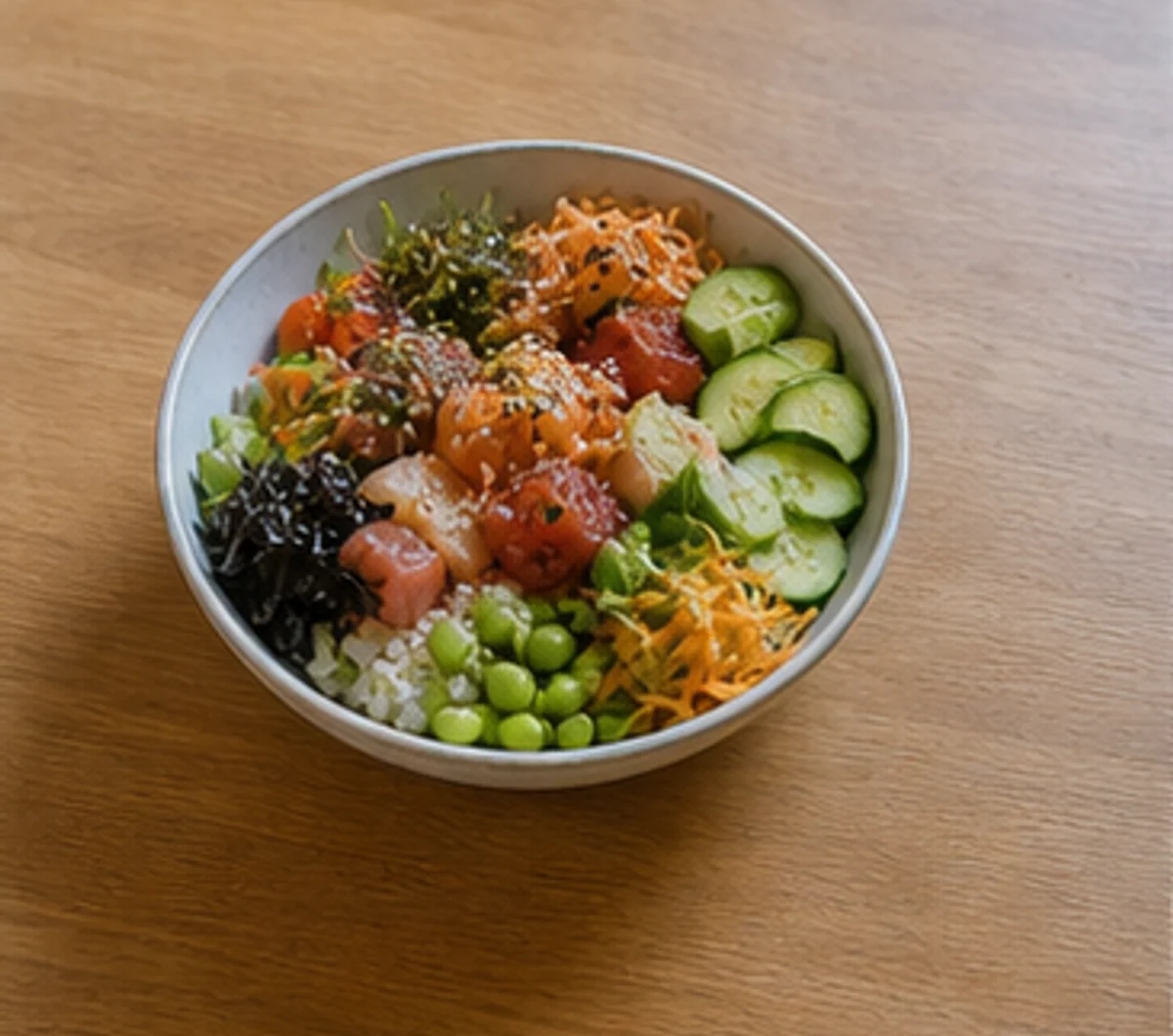
Object remover ecommerce product cleanup beforeBefore
Object remover ecommerce product cleanup afterAfter

Ecommerce products

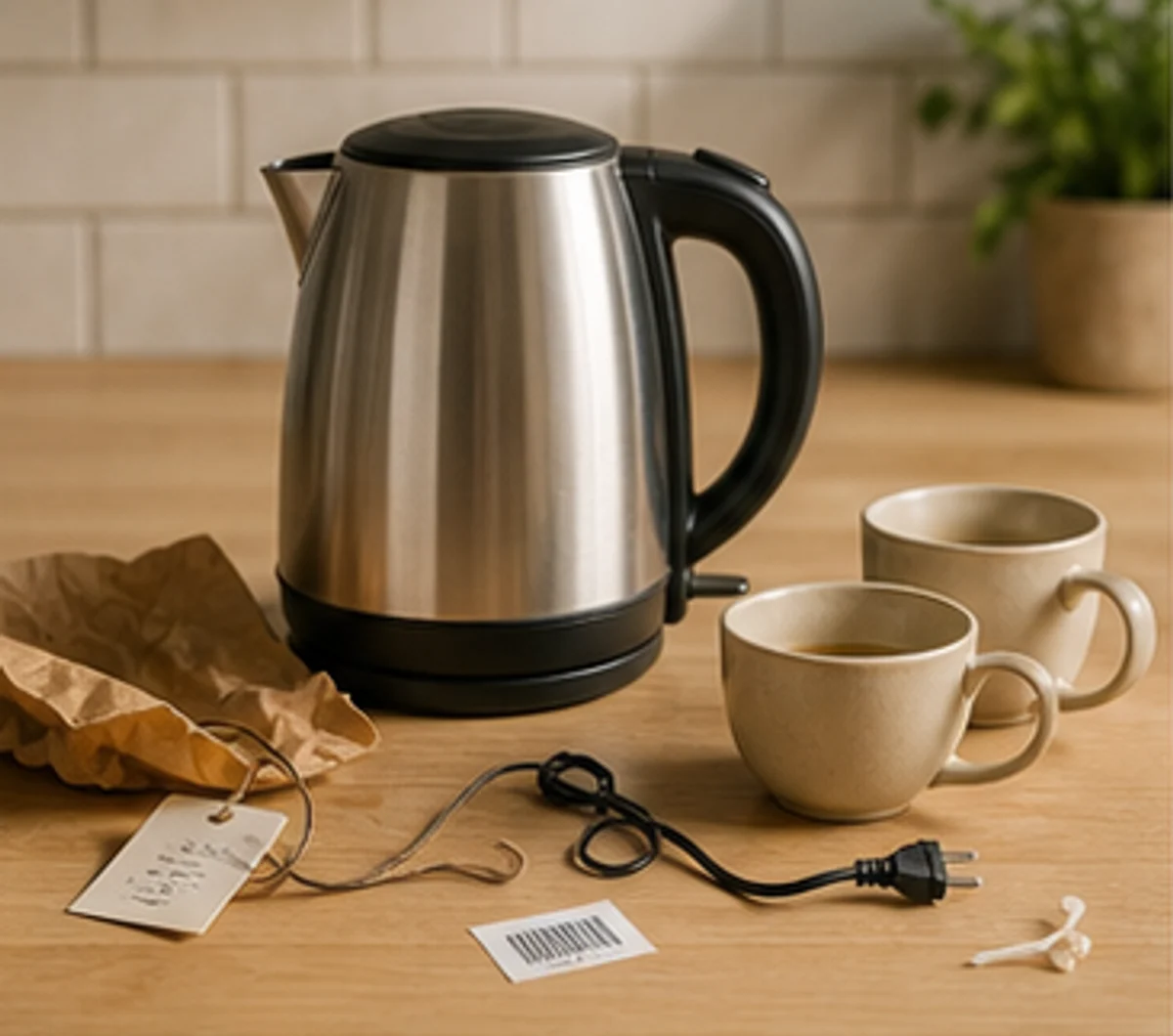
Remove tags, cables, dust, paper clutter, and table distractions with an ecommerce object remover before publishing product photos to shops, marketplaces, catalog pages, and ads.

Object remover profile portrait cleanup beforeBefore
Object remover profile portrait cleanup afterAfter

Profile and portrait photos

Clean background people, trash cans, sidewalk clutter, and small distractions from creator portraits, profile images, resume photos, and thumbnails without cropping the photo.

Object remover travel landscape cleanup beforeBefore
Object remover travel landscape cleanup afterAfter

Travel and landscape photos

Remove tourists, cones, litter, parked objects, and foreground distractions while keeping the landmark, scenery, and original travel composition.

Object remover real estate room cleanup beforeBefore
Object remover real estate room cleanup afterAfter

Home and real estate images

Prepare listing photos, rental rooms, interior portfolios, and property marketing images by clearing bins, cords, boxes, laundry, and floor clutter from room photos.

Object remover food photo cleanup beforeBefore
Object remover food photo cleanup afterAfter

Food and menu images

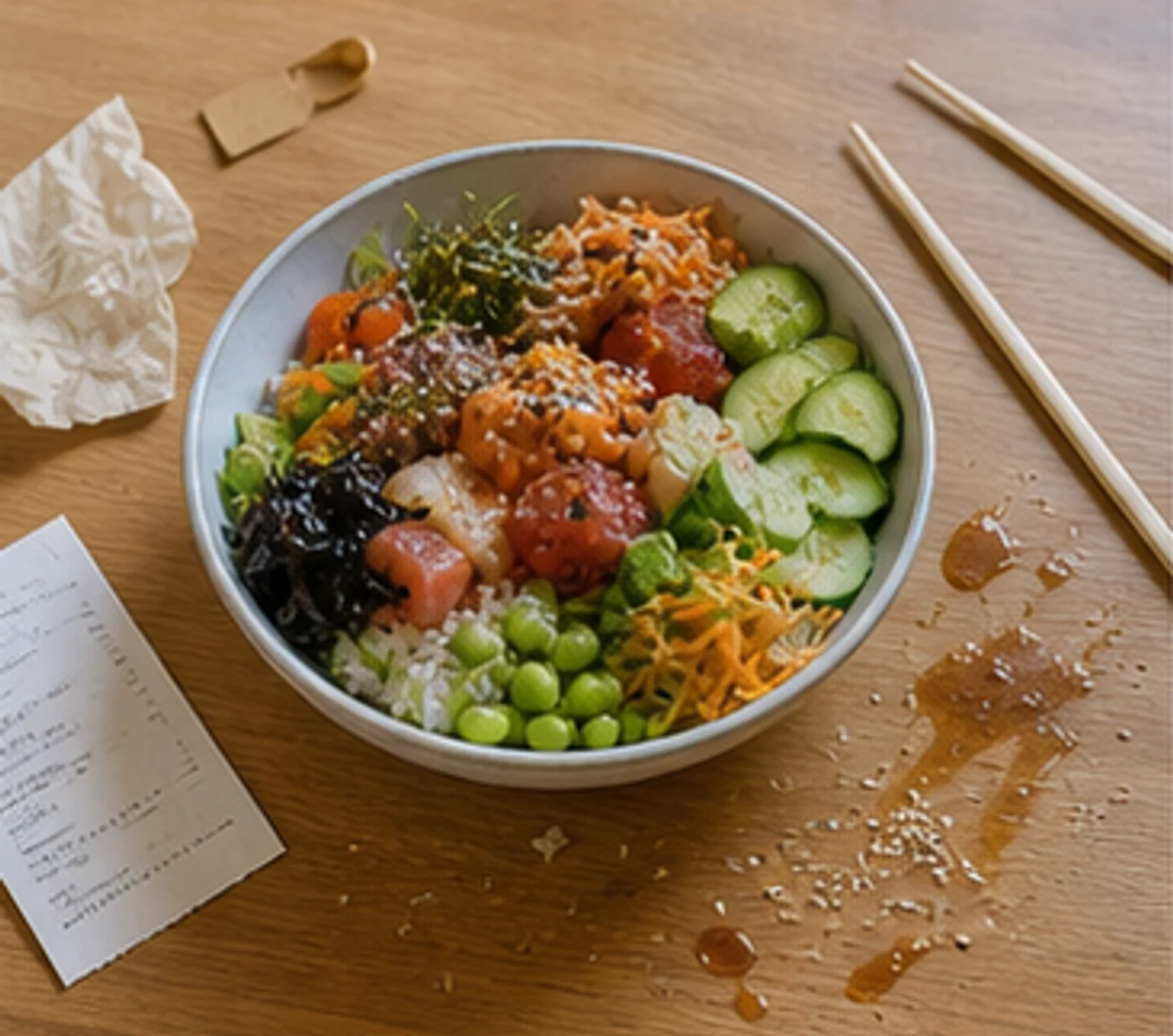
Clean crumbs, extra utensils, napkins, table mess, and sauce smears from restaurant dishes, dessert photos, menu images, and social food posts.

Object remover creator campaign cleanup beforeBefore
Object remover creator campaign cleanup afterAfter

Creator campaigns

Turn desk scenes, brand photos, blog headers, campaign assets, and creator visuals into cleaner images by removing cables, notes, phones, props, and small background objects.

FAQ

Photo Object Remover FAQ

Answers about removing objects from photos online, supported formats, brush selection, people cleanup, image quality, ecommerce cleanup, and responsible editing.

AI 智能橡皮擦可以移除什么?

可以移除你拥有或有权编辑图片中的多余物体、路人、文字、贴纸、Logo、标记、日期水印、背景杂物、瑕疵、电线、路牌、污渍和其他干扰内容。

可以移除照片中的路人和人群吗?

可以。用画笔涂抹想移除的路人、人群、游客或误入镜头的人,再应用 AI 修复。周围背景纹理越完整,修复效果通常越自然。

可以去文字、去 Logo 或去水印吗?

可以清理自有图片或有权修改图片中的文字、标签、小 Logo、贴纸、时间戳、标记和水印,但不要用于规避版权、授权或平台规则。

适合清理电商商品图吗?

适合。它可以清理商品图里的灰尘、划痕、道具、标签、桌面杂物、反光、背景标记和小瑕疵,方便发布商品列表图、详情图和广告素材。

支持哪些图片格式和大小?

支持 PNG、JPG、JPEG、WebP 和 AVIF 等常见图片格式,单张图片最大 10MB。

使用智能橡皮擦后还能继续编辑吗?

可以。同一个编辑器还能继续移除背景、生成 AI 背景、添加文字、调整亮度对比度、导出 PNG 或 JPG。

AI 修复一定完美吗?

修复效果会受到图片清晰度、涂抹范围、背景纹理复杂度和被移除区域大小影响。小物体、边界清楚、周围纹理连续的图片通常效果更好。

哪些图片适合用智能橡皮擦清理?

商品图、人像图、旅行照片、食物图、房产图、活动图、社媒帖子、短视频封面、缩略图和营销素材都可以使用。

Use object removal only on images you own or have permission to edit.

AI 物体移除工具 - 在线去除照片中的多余物体 | AISuperRemover