Used first; paid features still need an entitlement
0
Basic free credits
AI Image Upscaler
Free AI Image Upscaler Online for Sharper Photos
Upscale photos online with AI and recover clearer detail for product, portrait, travel, interior, food, and creator images. Free to start, no login required, no watermark added, and runs online so you can upload and process directly.
BeforeAfter
Open a low-resolution product, portrait, travel, or interior sample in the upscaler workflow.
AISuperRemover focuses on practical image upscale work: product listings that need sharper texture, profile photos that look soft after cropping, travel pictures saved from chat apps, real estate images, food photos, and marketing graphics that need larger export sizes. The upscaler keeps the same scene and uses AI enhancement to create a cleaner, more useful image for publishing.
Before
After
BeforeAfter
Upscale Travel Images and Recover Landscape Detail
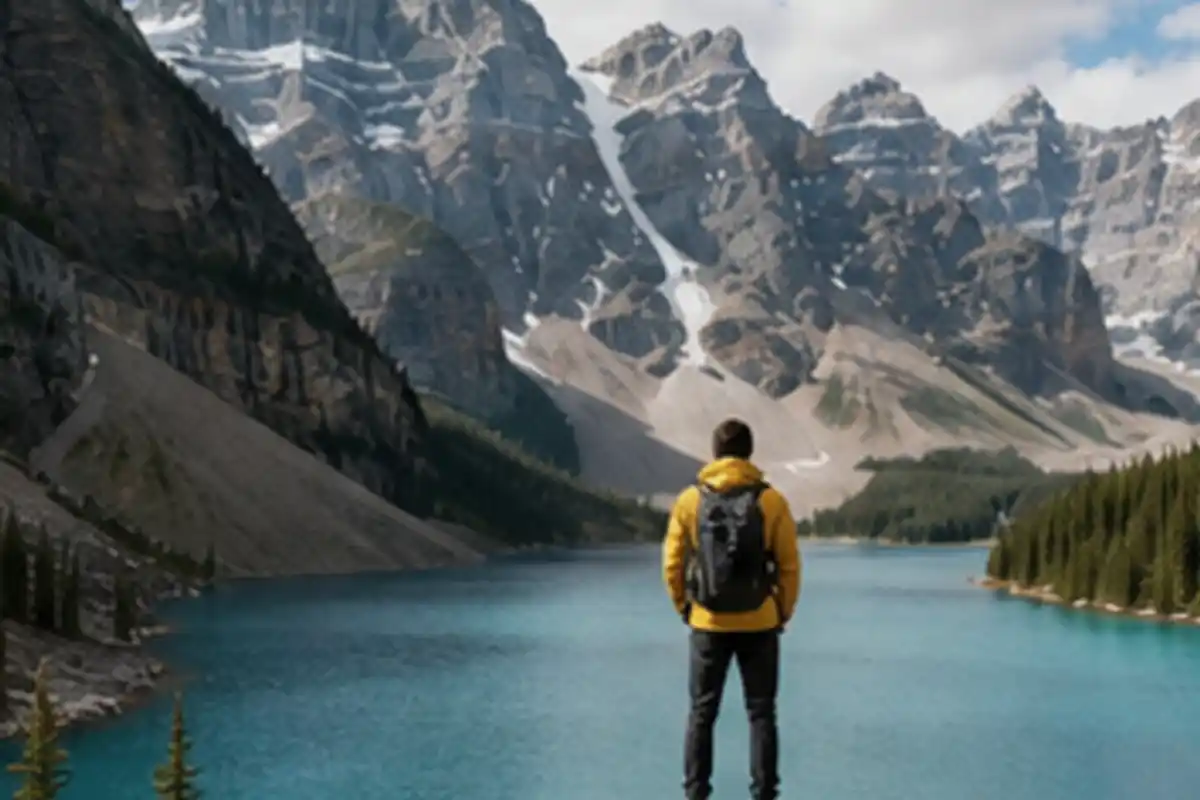
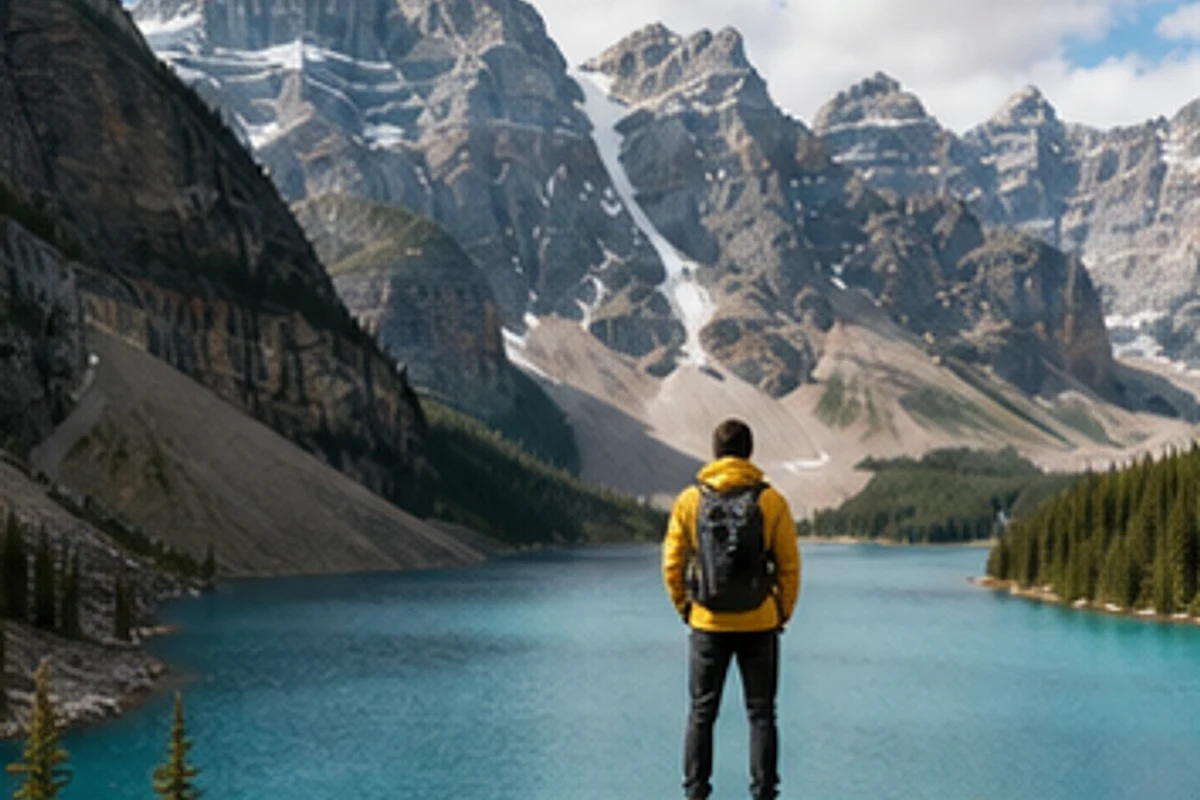
Use the AI image upscaler to enlarge travel photos, mountain views, city shots, and vacation images that look compressed after sharing. Simply upload your photo, open the upscale workflow, and let smart AI recover clearer edges, sky texture, trees, buildings, water reflections, and distant landscape depth without rebuilding the shot in Photoshop. Create a sharper image for albums, blog headers, social posts, prints, and travel guides while keeping the composition natural. For removing distracting people after you improve the photo, open the people remover workflow and clean the scene before exporting the final high-resolution result.
BeforeAfter
AI Portrait Upscaler for Profile Pictures and Creator Photos
Upscale portrait images for profile photos, resumes, creator bios, thumbnails, portfolio pages, and social posts when the original looks soft, cropped, or compressed. Upload the portrait, enhance it with AI, and create a clearer high-resolution image while preserving the same person, expression, pose, lighting, and natural face detail. The workflow helps creators, students, and professionals prepare polished profile images without complicated desktop editing. If the background needs a cleaner look after upscaling, continue with the background remover or replace the scene with a simpler profile-ready backdrop before download.
BeforeAfter
Product Image Upscaler for Ecommerce Listings
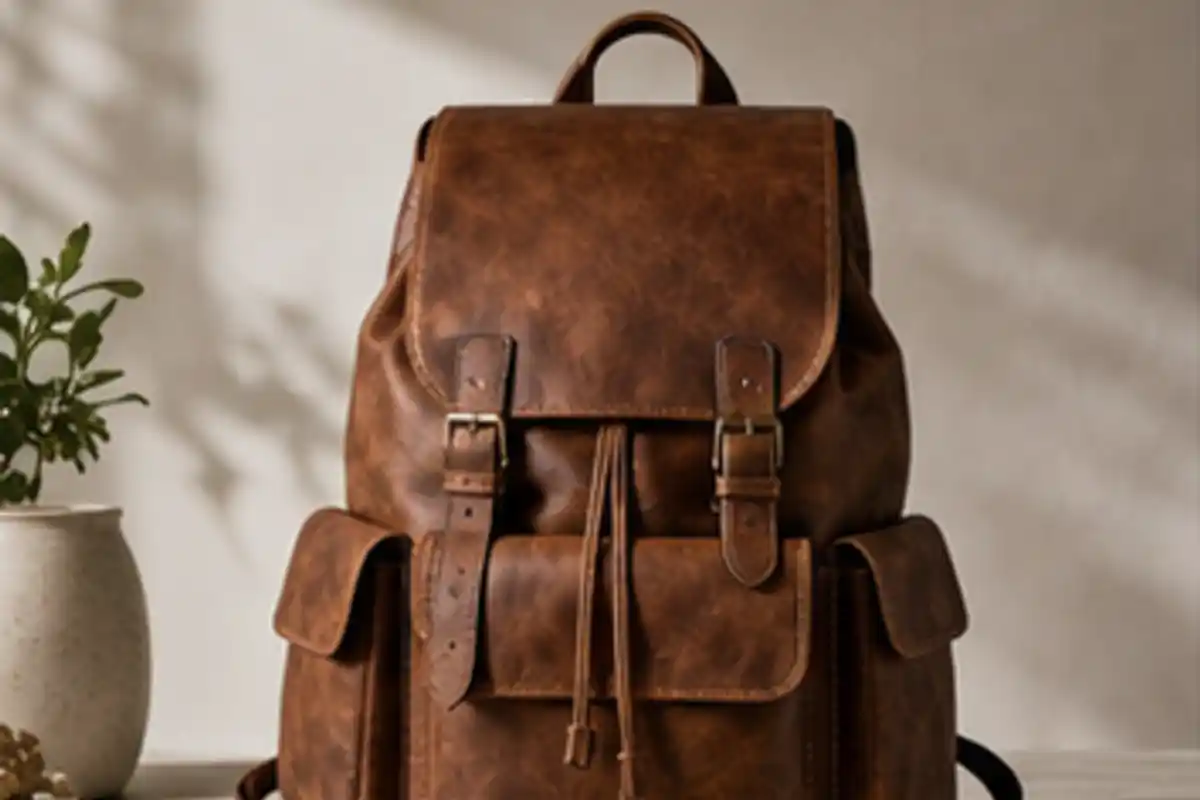
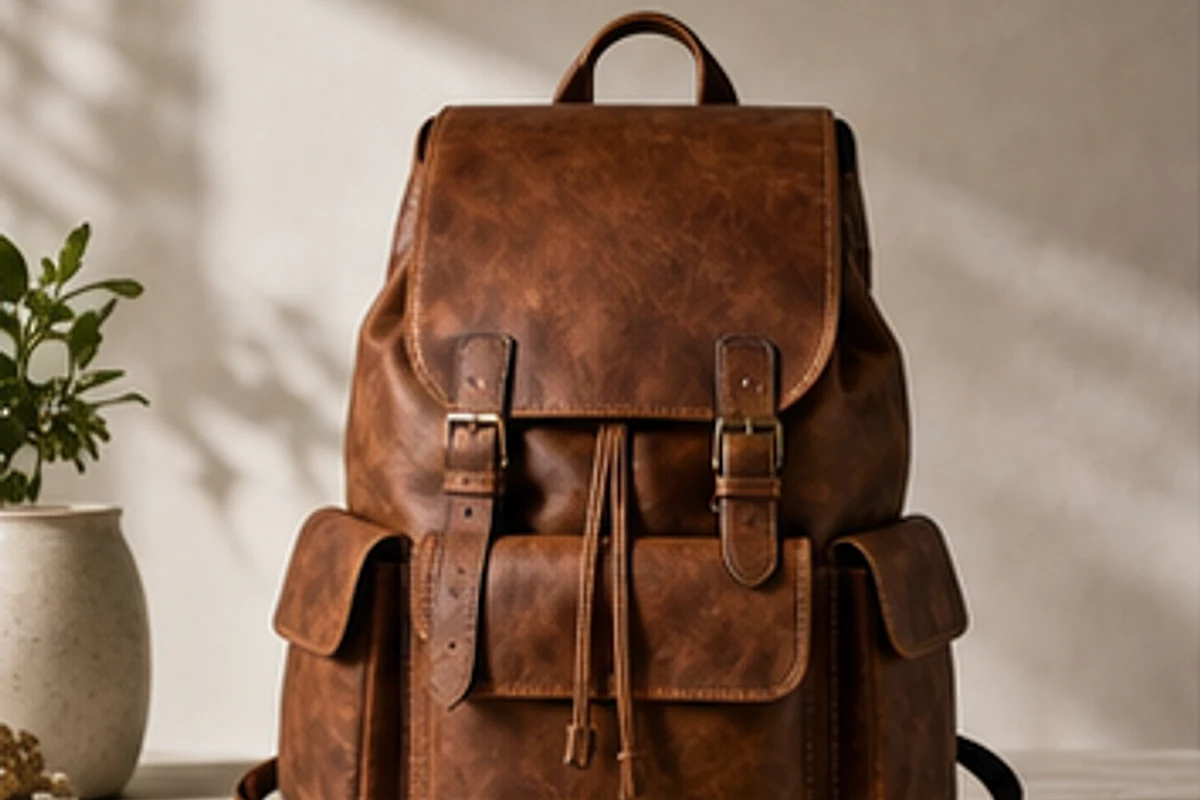
Use an AI image upscaler for ecommerce photos when marketplace images are too small, cropped, or compressed for modern product pages. Upload a product photo and let the upscaler improve visible texture, edges, packaging, fabric, leather, shoes, accessories, and surface detail while keeping the item shape and lighting consistent. Create sharper images for listing previews, catalog graphics, ads, landing pages, and social commerce posts without recreating the shoot. If the background also needs cleanup, use the transparent background maker to turn the sharpened item into a reusable PNG cutout for more layouts.
BeforeAfter
Upscale Food Photos for Menus, Posts, and Ads
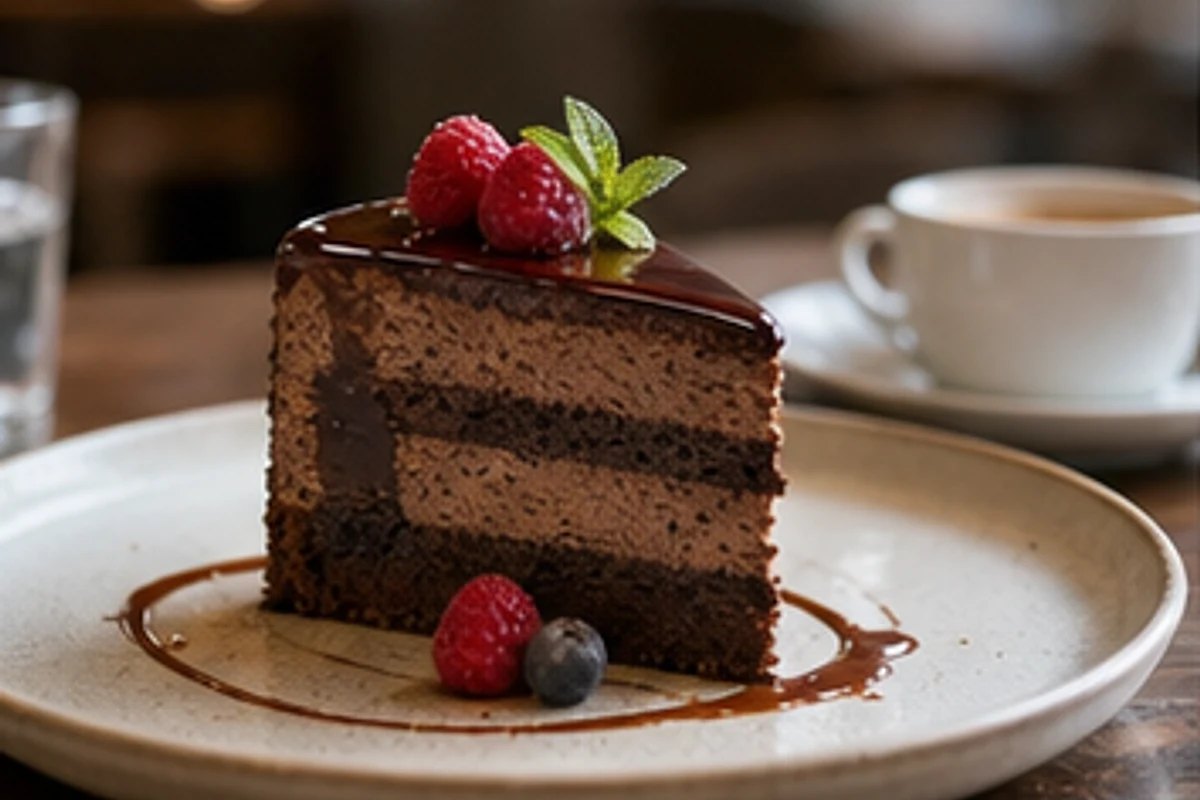
Food images often lose texture after being resized for delivery menus, social posts, ad layouts, and restaurant website previews. Upload a dessert, dish, or drink photo and use AI upscaling to make berries, glaze, crumbs, plate edges, table detail, and soft lighting easier to see before publishing. The result keeps the same composition but gives marketers, cafe owners, and creators a clearer image for menus, reels, banners, and promotional graphics. When old labels, small text, or marks distract from the food, clean them with the magic eraser and export a cleaner promotional image from the editor.
BeforeAfter
Interior and Real Estate Image Upscaler
Upscale interior photos, room images, rental listing visuals, home decor shots, and real estate assets that need a larger, cleaner export for publishing. Upload the room photo and let the AI image upscaler improve furniture edges, wall texture, window light, shelves, decor, floor detail, and listing-ready clarity while keeping the space realistic. It helps agents, hosts, designers, and marketers prepare sharper visuals for property pages, brochures, decks, and social posts without rebuilding the image in Photoshop. If you need to remove a sign, cable, or small object after upscaling, try the smart eraser tool inside the editor before exporting the final image.
AISuperRemover
Use one AI upscaler across real publishing workflows
The page is built around practical search intent: upscale image, AI image upscaler, free image upscaler, 4K image upscaler, product image upscaler, and how to upscale an image without desktop editing software.
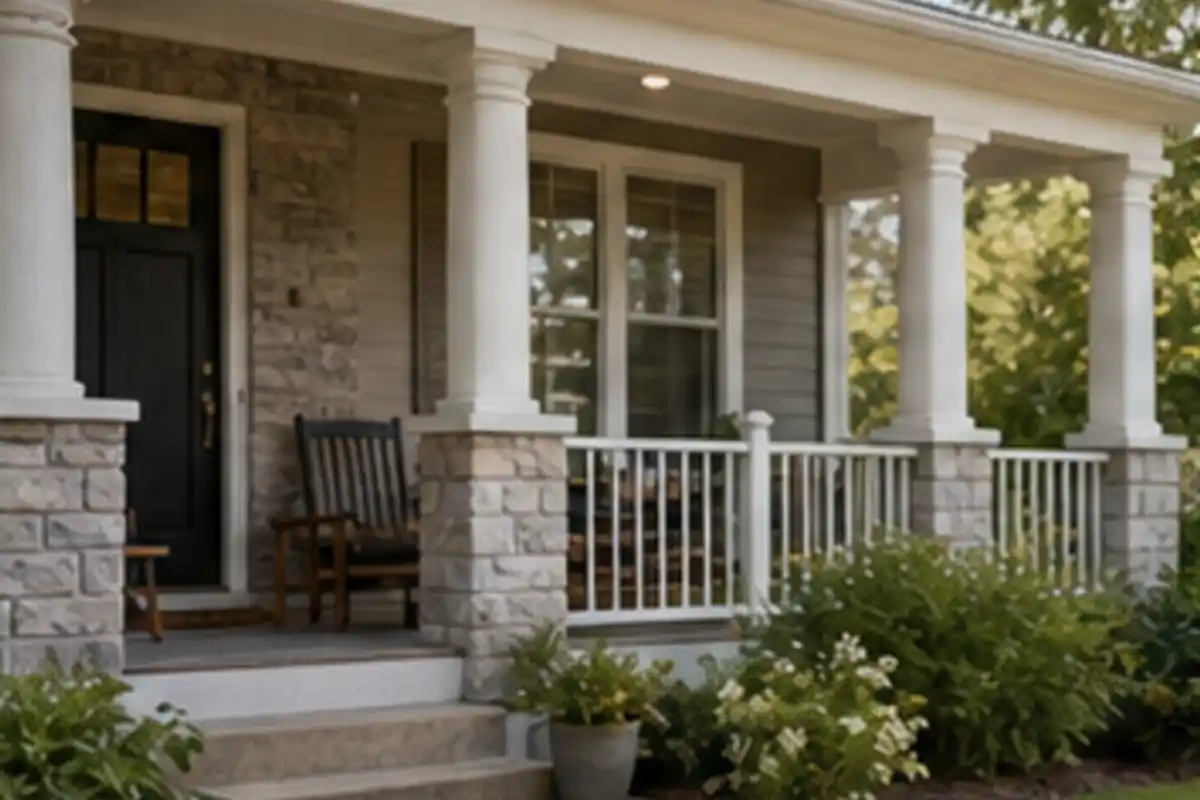
Before
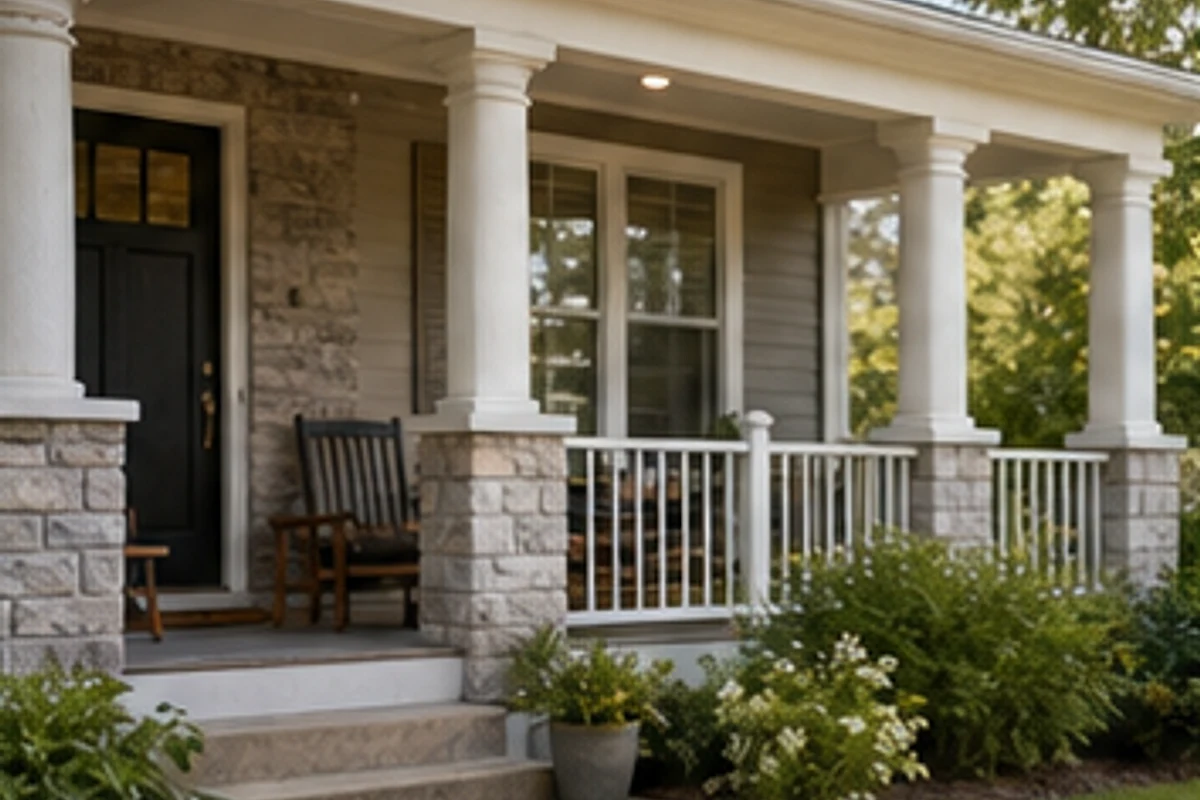
After
Upscale image to 4K-ready detail
Open the editor with the upscaler selected, upload your photo, choose a higher output level, and create a sharper high-resolution file for large previews, landing pages, product graphics, social posts, presentation slides, and print drafts. The current credit requirement is shown before processing.
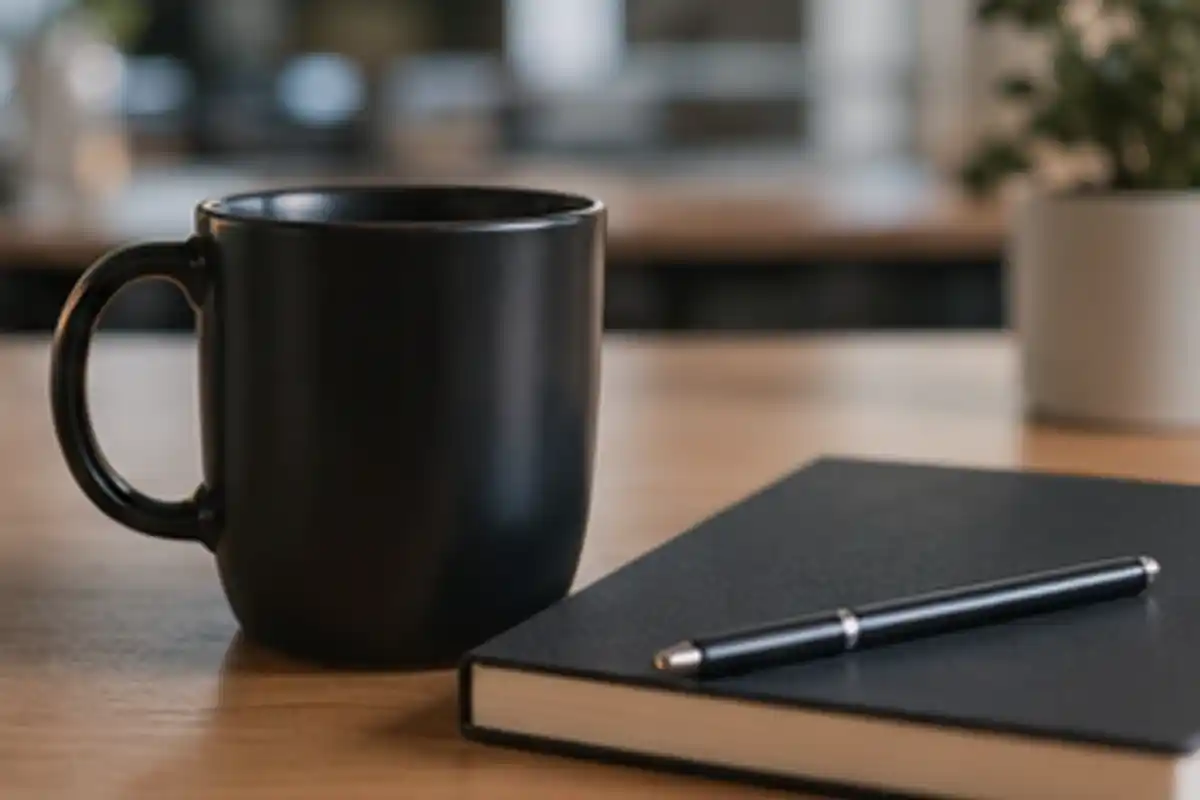
Before
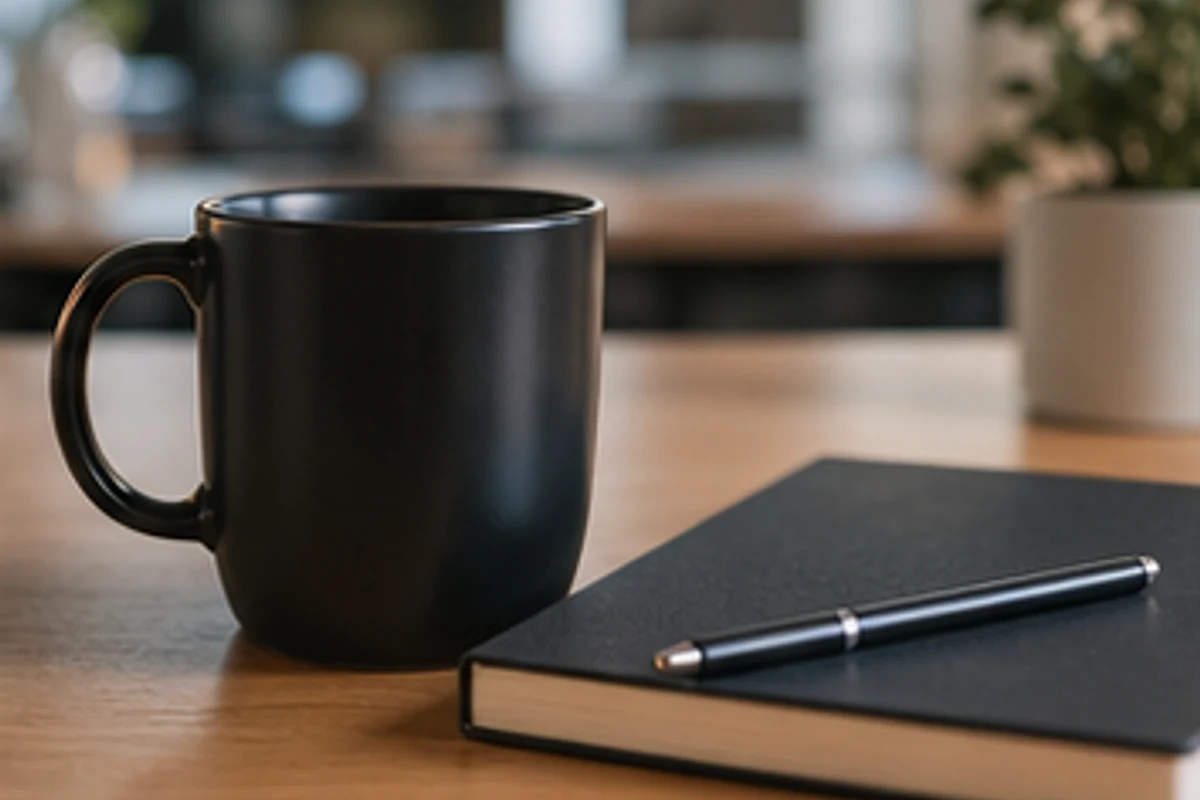
After
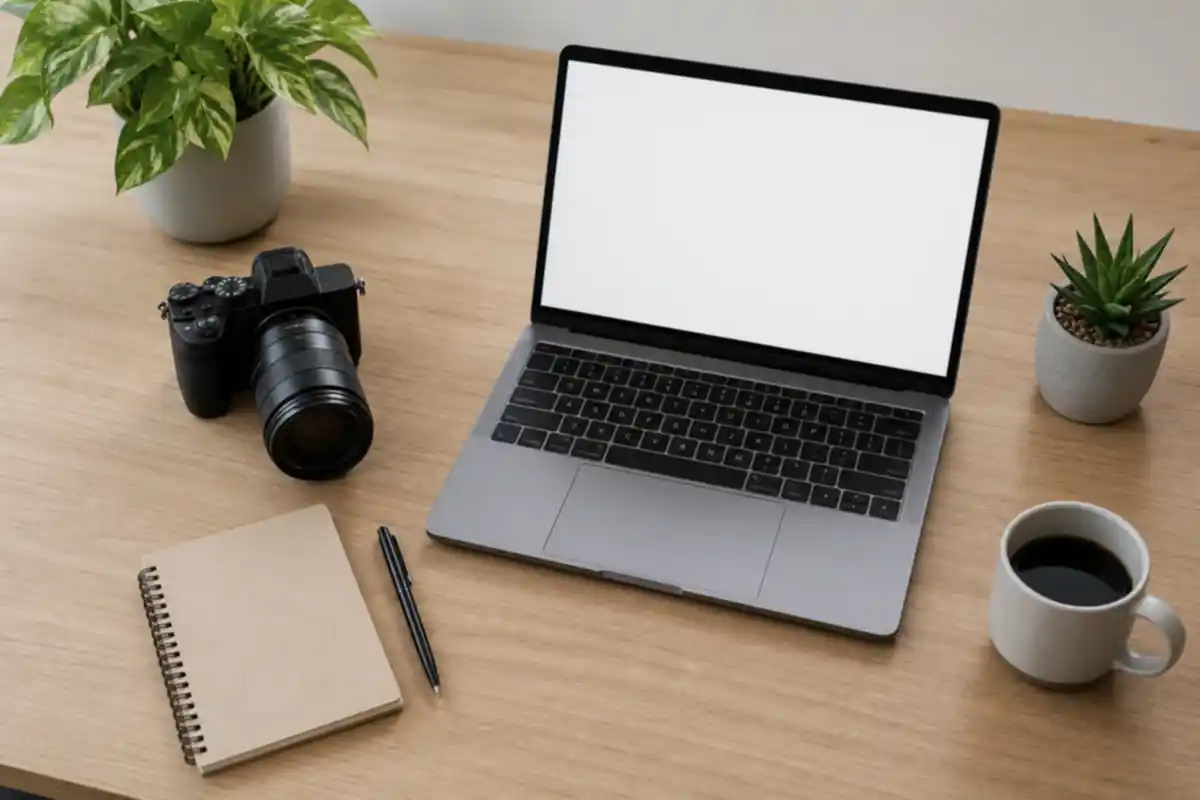
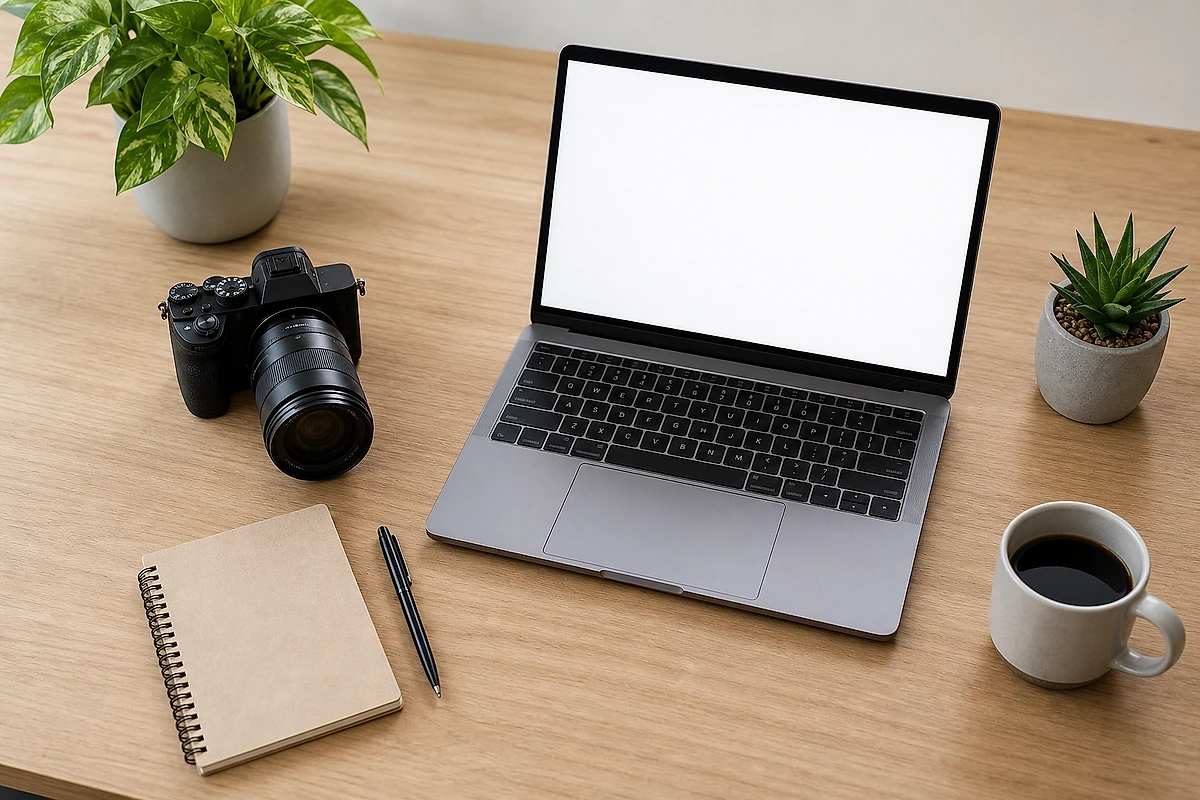
Enhance creator and marketing assets
Use AI image upscale for creator desks, flat lays, thumbnails, campaign visuals, and blog images that need more clarity after cropping, resizing, or compression. Keep the original scene while improving perceived detail for headers, ads, media kits, social graphics, launch posts, and portfolio updates.
Before
After
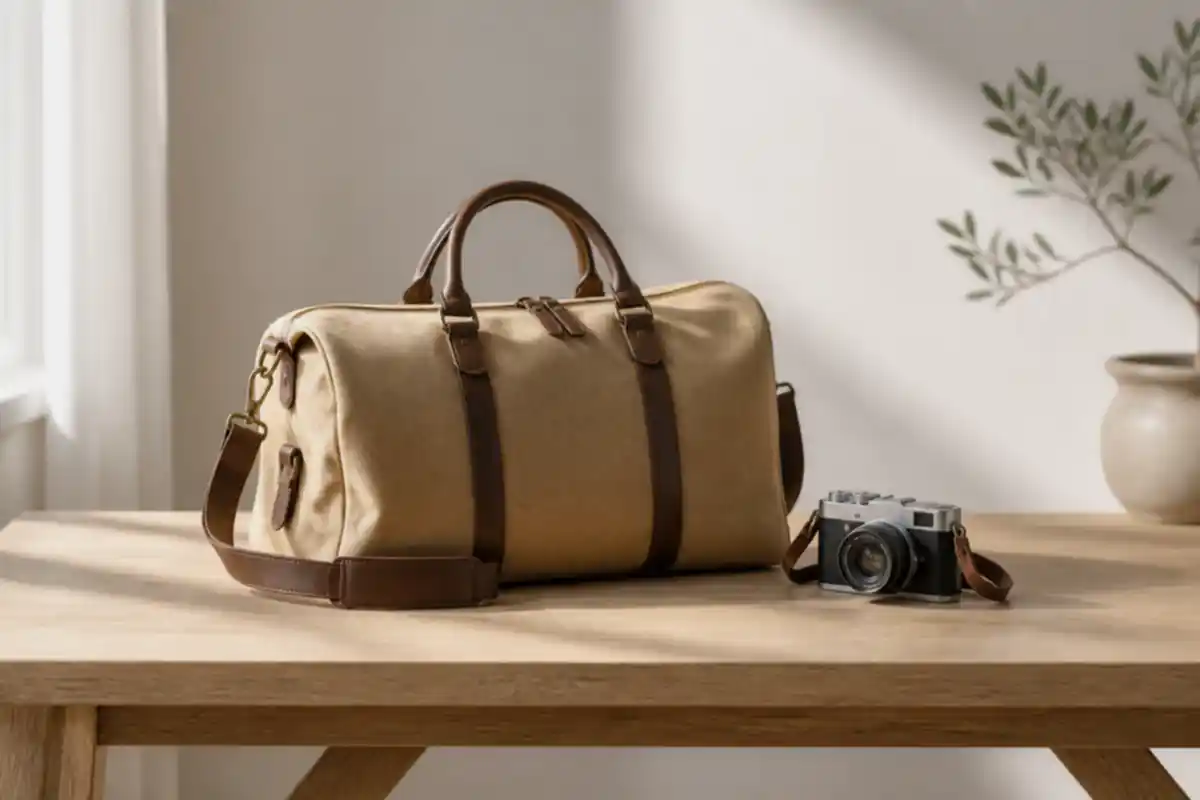
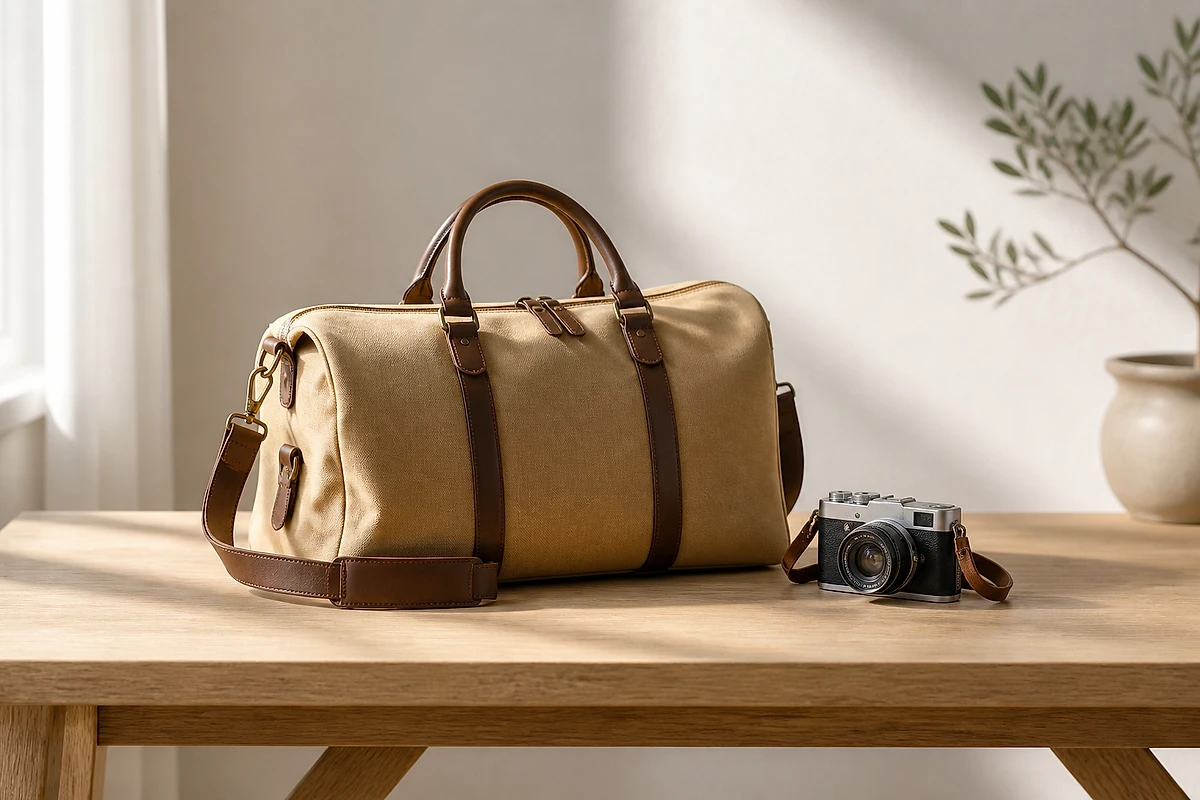
Recover small marketplace images
Older marketplace photos and seller images can look too small for modern layouts, catalog tiles, and responsive product pages. Upscale the image first, then remove backgrounds, add text, replace scenes, or export a cleaner result for listings, ads, storefront updates, and seasonal product refreshes.
Before
After
Prepare clean exports after editing
After removing backgrounds, erasing objects, replacing scenes, or adding text, use the upscaler workflow when the final image needs a larger export size. Prepare cleaner files for web pages, print drafts, client previews, presentation decks, reusable campaign assets, and archive-ready visuals.
AISuperRemover
How to upscale an image online
Upload an image, open it in the AI image upscaler, choose the upscale level, then download the sharper result. The workflow uses the same secure editor upload rules as the rest of AISuperRemover.
1
Upload your image
Choose a JPG, PNG, WebP, or BMP file. Start with the clearest version you have because AI upscaling works best when the original subject is visible and not heavily damaged.
2
Choose an upscale level
Open the editor with Upscale selected, review the image, then choose a larger output option such as 2K, 4K, 8K, or 16K when available for your file and plan.
3
Download or keep editing
Download the upscaled result, or continue with background removal, Magic Eraser cleanup, background replacement, crop, text, and export tools in the same editor.
AISuperRemover
Image upscaler use cases
Use the AI photo upscaler for images that are important enough to publish, list, print as a draft, place in a deck, or reuse in a marketing workflow.
Before
After
Ecommerce products
Upscale product photos for listings, catalog assets, marketplace previews, ads, and social commerce images.
Make desserts, restaurant dishes, menu photos, and social food images look clearer before publishing.
Before
After
Creator campaigns
Upscale flat lays, desk scenes, brand photos, blog headers, and graphics used across multiple formats.
AISuperRemover
AI Image Upscaler FAQ
Answers about how to upscale an image, when AI image upscaling helps, 4K outputs, file quality, credits, privacy, and responsible use.
How do I upscale an image online?
Upload your image, open it in the AISuperRemover editor with Upscale selected, choose the output level, process the image, then download the sharper result. You can keep editing with other tools before or after the upscale step.
Is this an AI image upscaler?
Yes. The workflow uses AI image upscaling to enlarge photos and improve perceived clarity. It is useful for product photos, portraits, travel shots, interiors, food images, and creator assets that need a larger export.
Can I upscale image to 4K?
The editor supports high-resolution upscale options when available for the uploaded file and current plan. The interface shows the available output level and credit requirement before processing.
Does AI upscaling change the photo?
The goal is to keep the original scene, subject, and composition while improving detail. Results still depend on the original image quality, compression, blur, lighting, and subject complexity.
What images work best?
Clear source images with visible subjects, decent lighting, and moderate compression work best. Extremely blurry, tiny, noisy, or heavily damaged files may still improve, but they cannot always become a perfect high-resolution photo.
Can I use this as a product image upscaler?
Yes. Ecommerce sellers can upscale product images before publishing, then continue with background removal, transparent PNG export, Magic Eraser cleanup, text, or crop tools.
Is this a free image upscaler?
You can start from this online page and use the editor flow. Current free, paid, credit, and export limits are shown in the product interface, so the page does not promise unlimited free processing.
What should I avoid uploading?
Only upload images you own, created, or have permission to edit. Do not use upscaling to misrepresent product condition, identity, evidence, licensing status, or copyrighted images.